How to use the Conceptualizer
1. Conceptualizer
The Conceptualizer is the starting point of every filter project. You’ll find it in the top navigation under Conceptualizer. It allows you to create structured visual concepts using text prompts and uploaded reference images. This step builds the visual foundation before transforming it into a production-ready filter.
Interface Overview
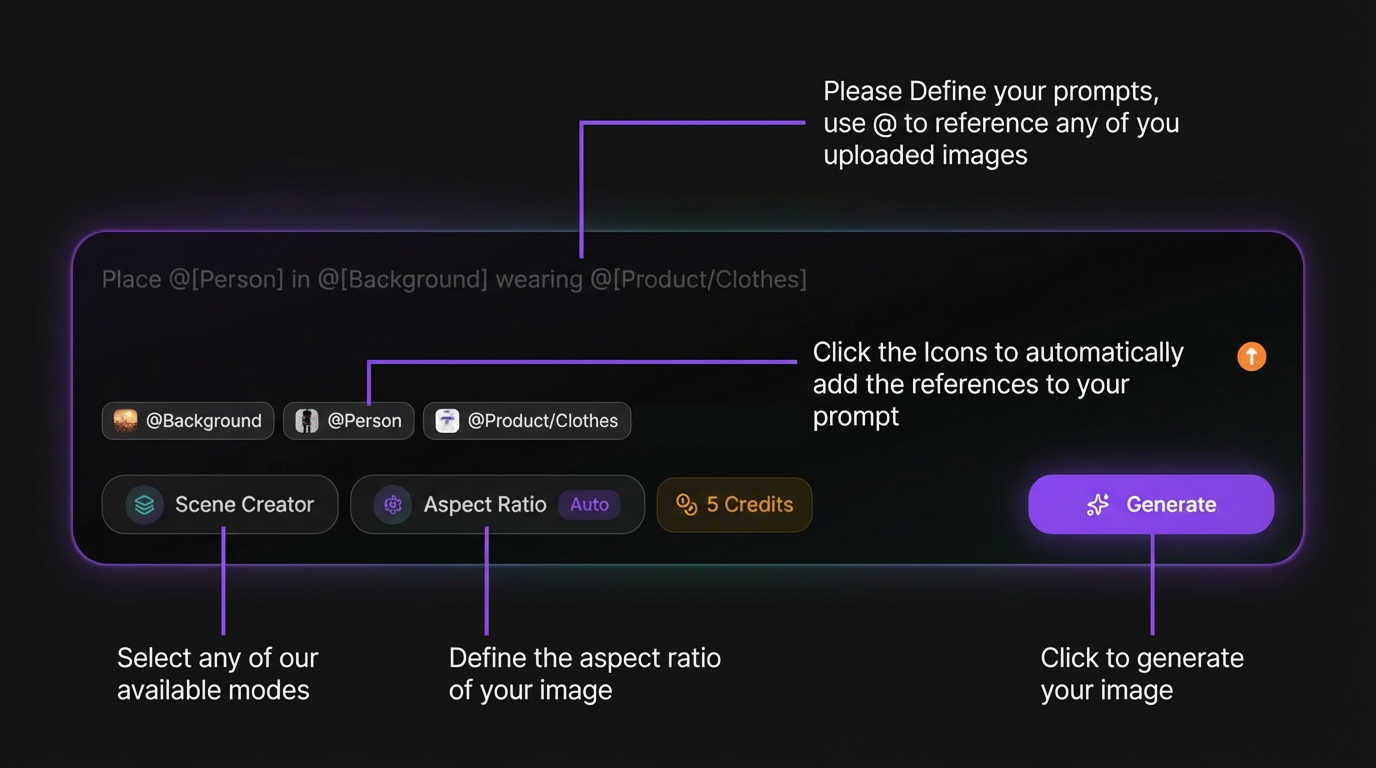
The Conceptualizer workspace is centered around the Prompting Field.
- Write your prompt
- Reference uploaded images using @filename
- Select a mode
- Define the aspect ratio
- Click Generate
Simple workflow:
Select mode → Define inputs → Write prompt → Generate concept → Copy to create filters
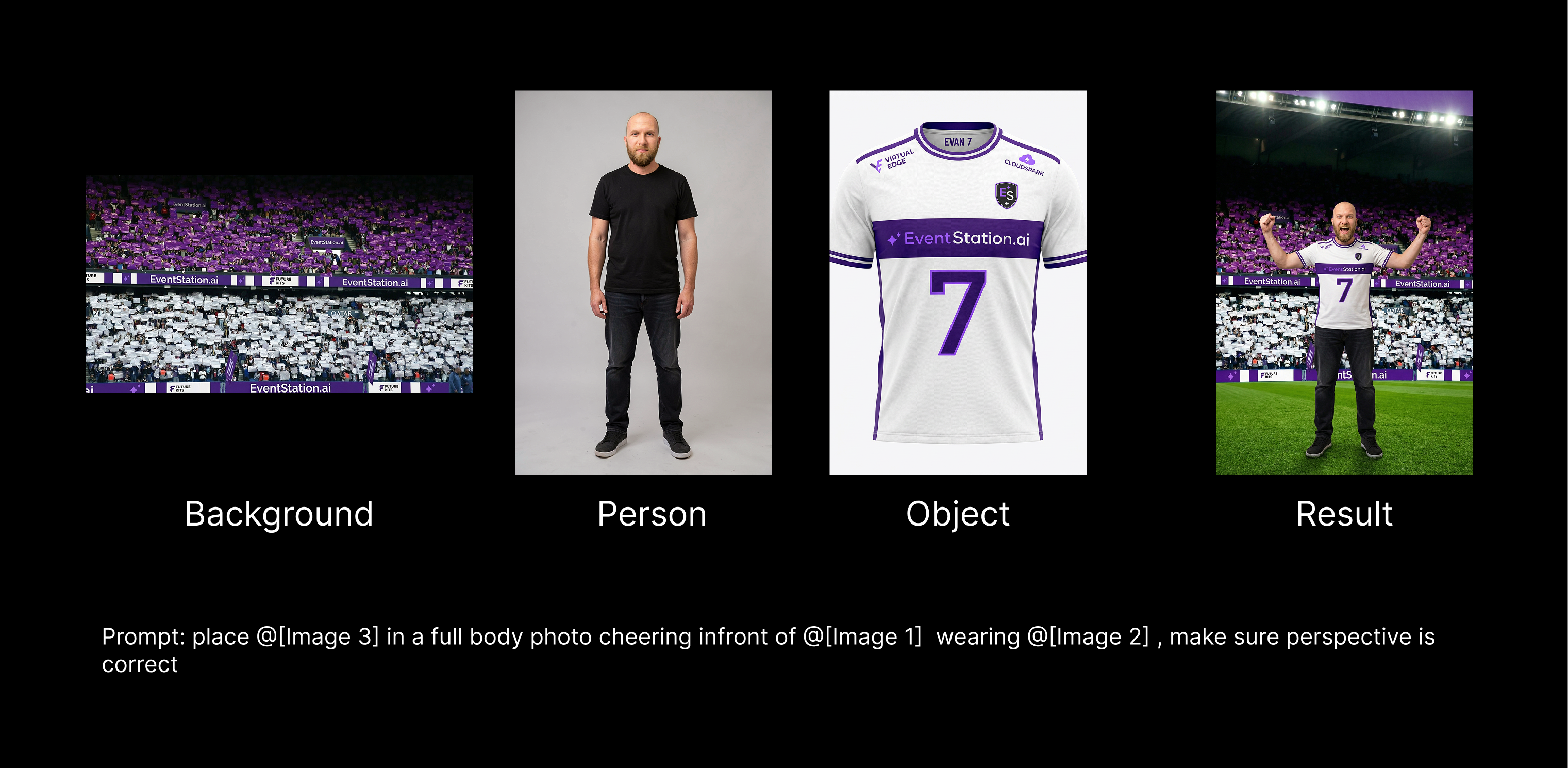
Mode 1: Scene Creator
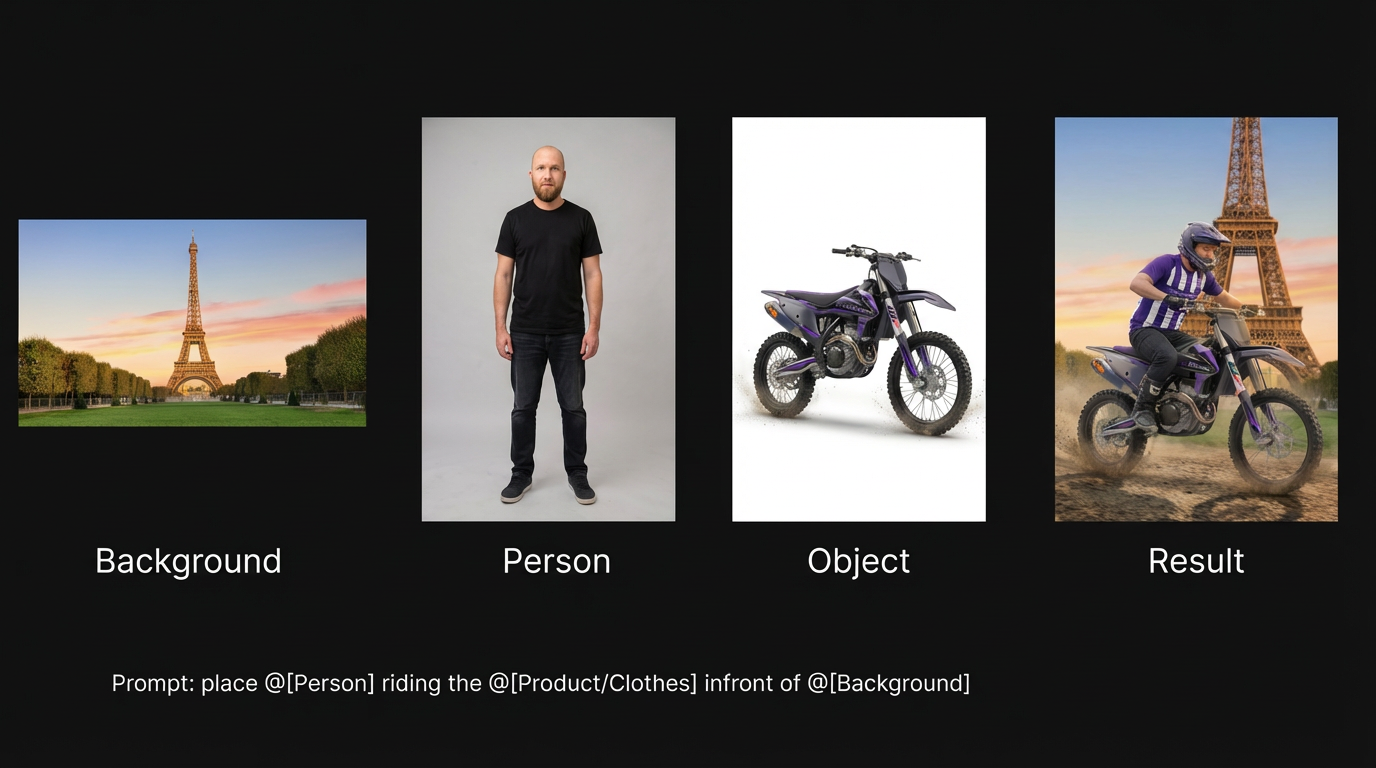
Combine structured inputs into a complete AI-generated scene.
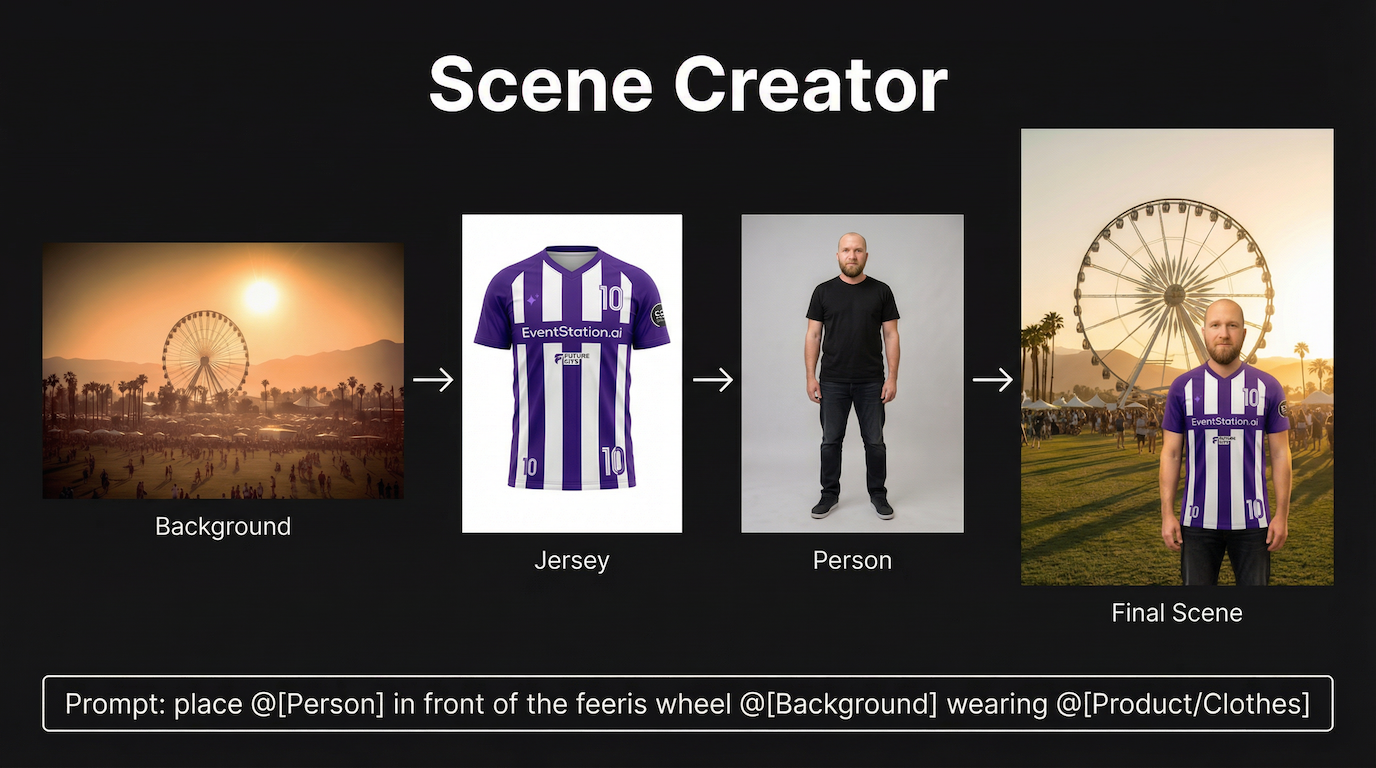
The Scene Creator allows you to build a scene using separate visual components.
Upload assets for background, person, and clothing/product — the AI composes the final image automatically.
Input Options
- Background
- Person
- Product / Clothes
Best used for structured campaign visuals and branded scene compositions.
Example 1
Example 2
Mode 2: Clothes Swapper
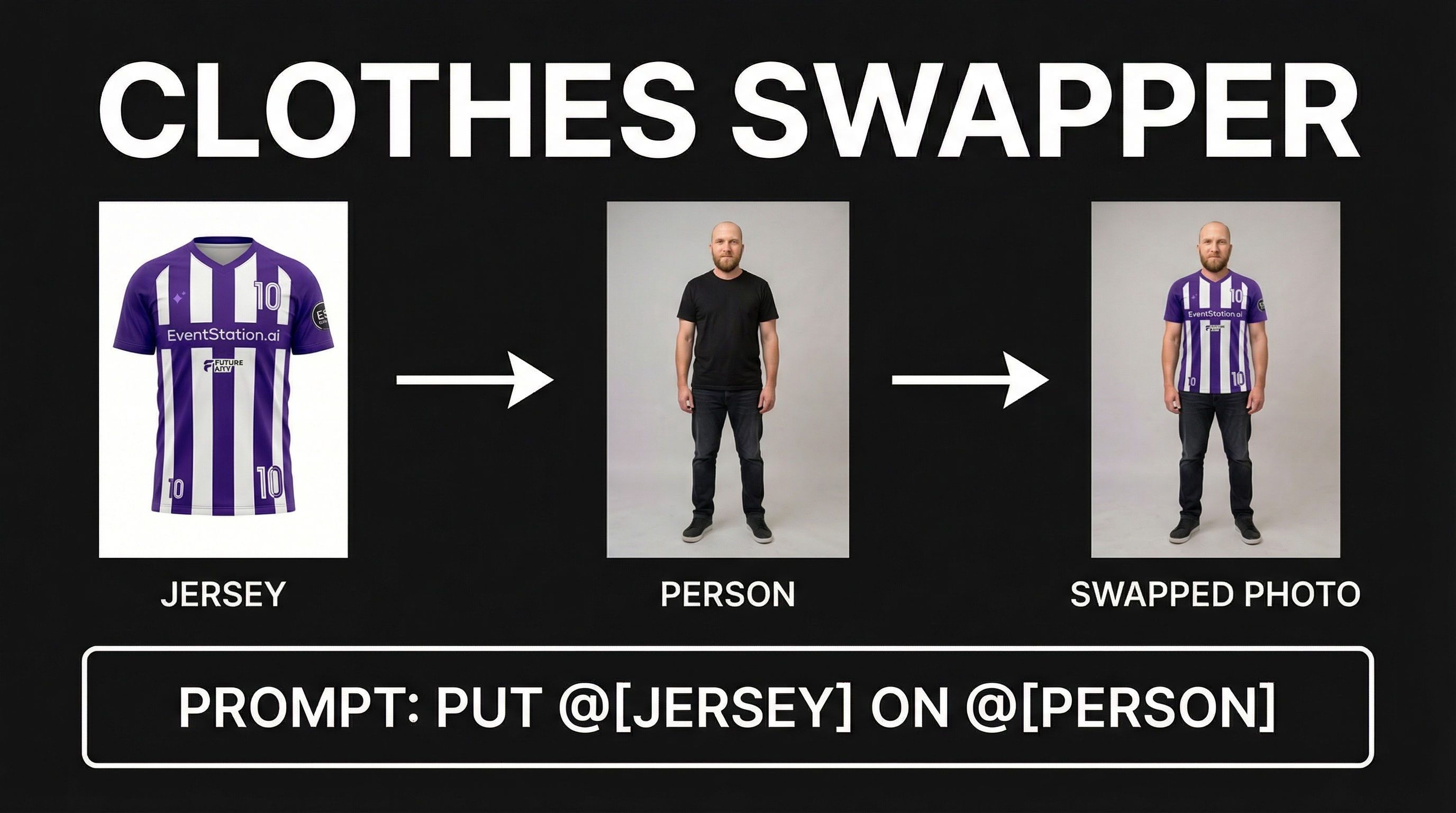
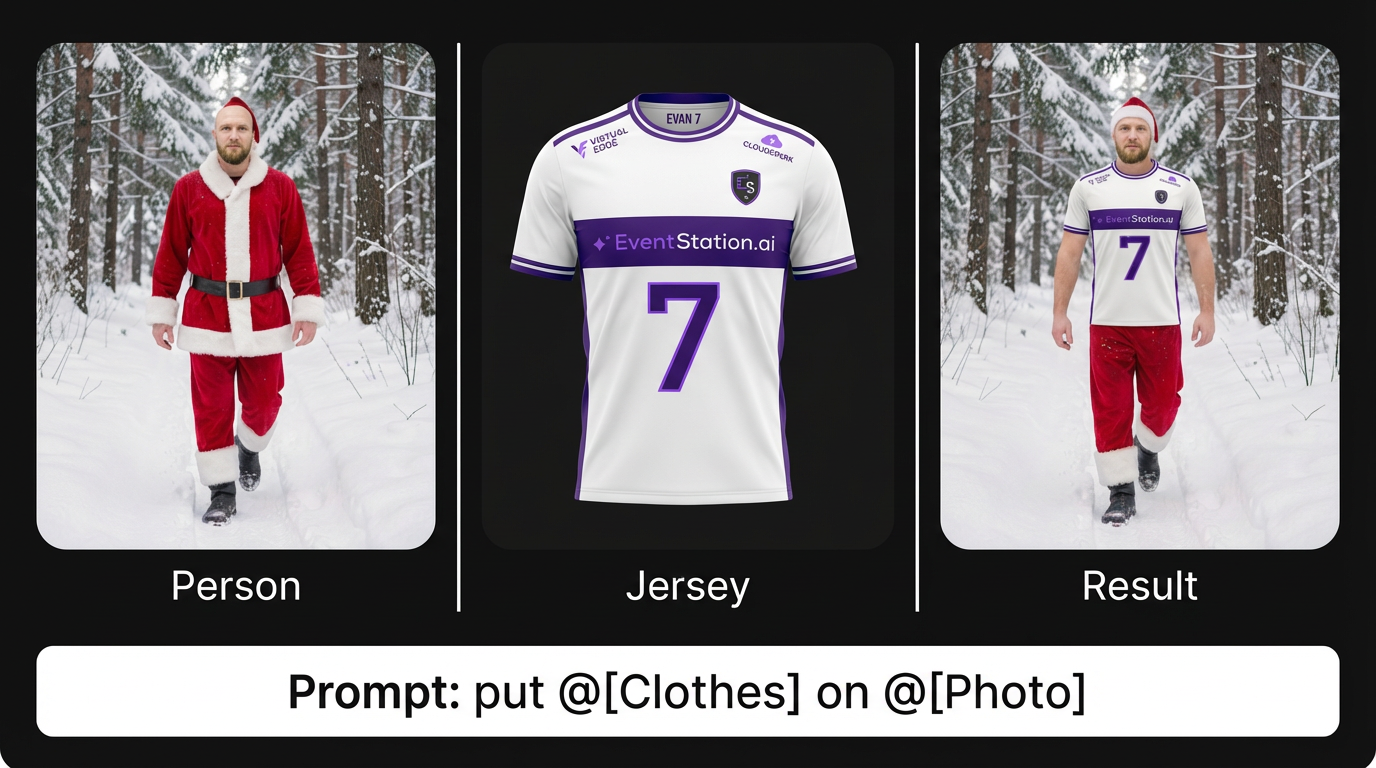
Replace outfits while keeping the person consistent.
Upload the base image of the person and the clothing reference. The AI swaps the outfit while maintaining pose, lighting, and identity. Ideal for branded outfit changes and campaign variations. Images of clothes perfom best when having a neutral white backrgound!
Input Options
- Person Image
- Clothing Item
Example 1
Example 2
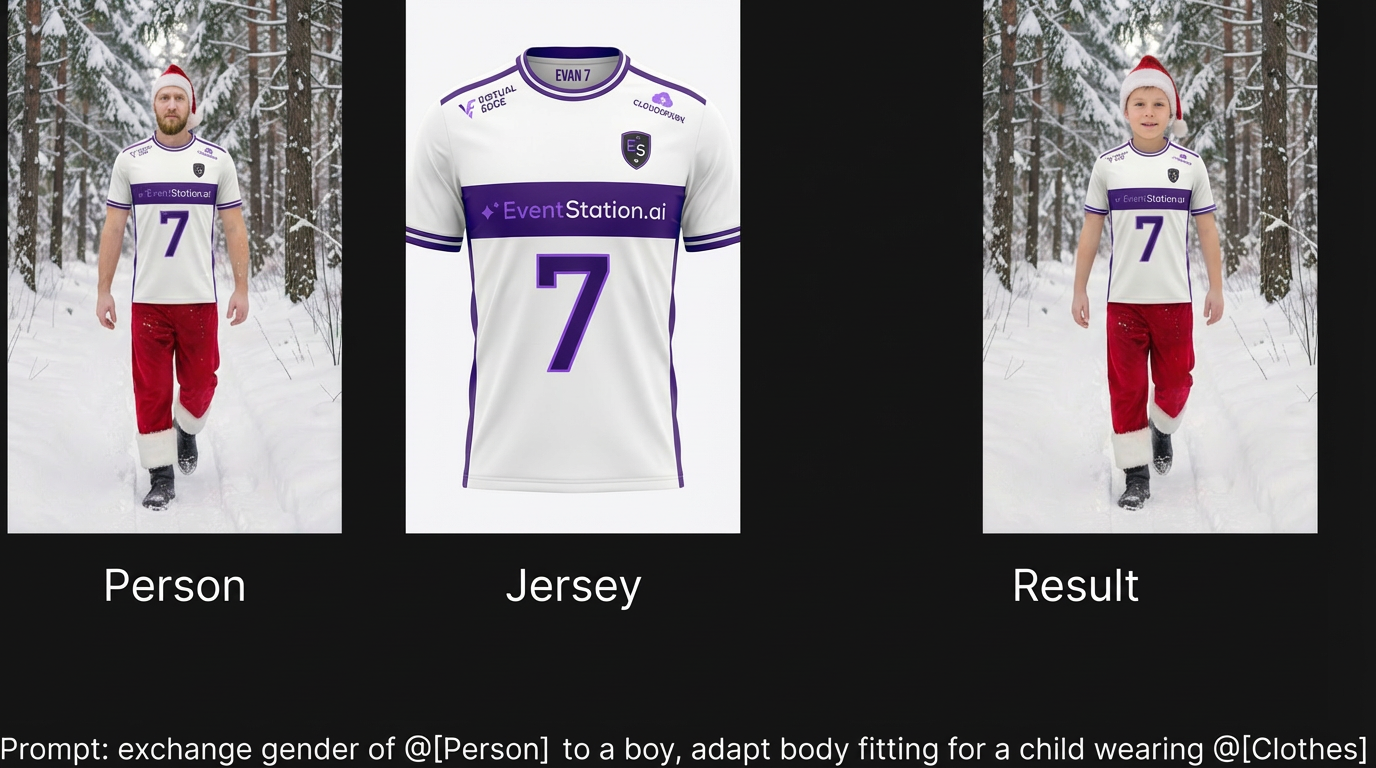
Mode 3: Gender & Age Swapper
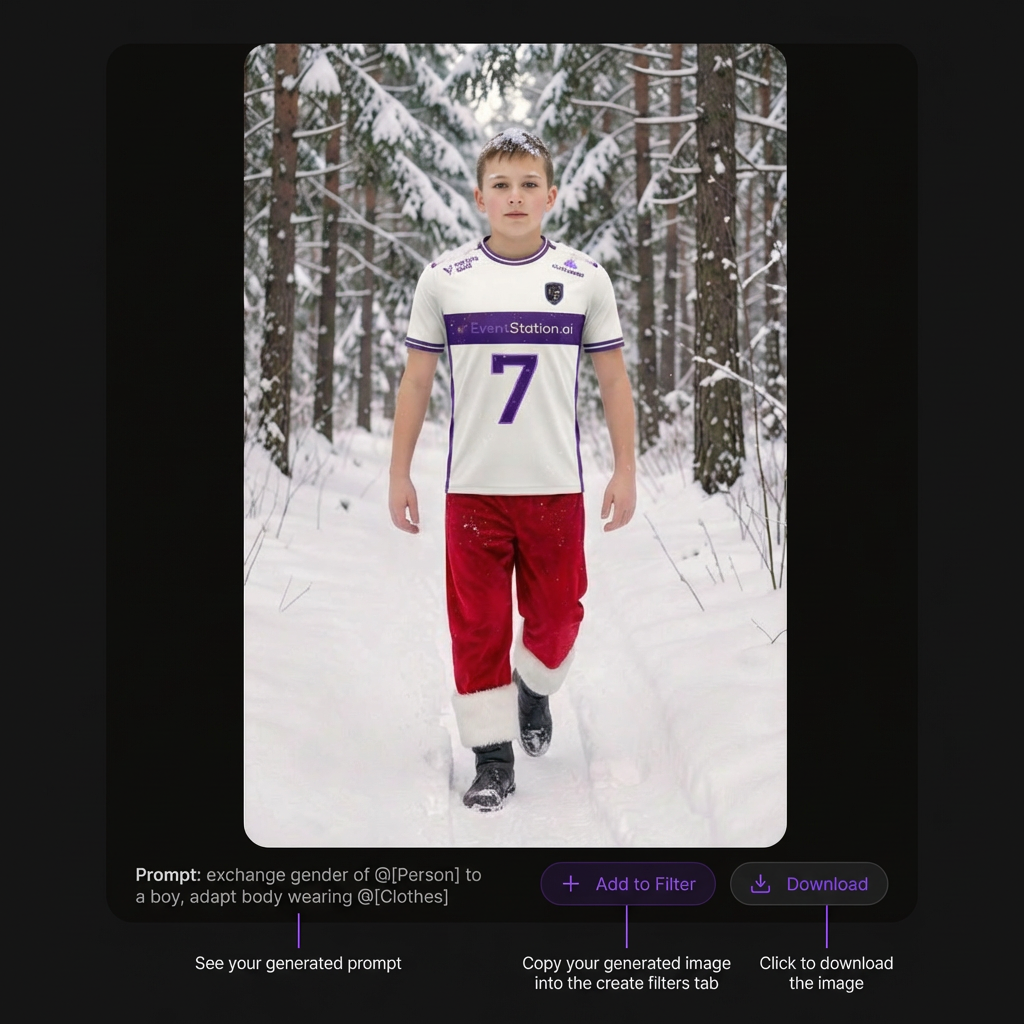
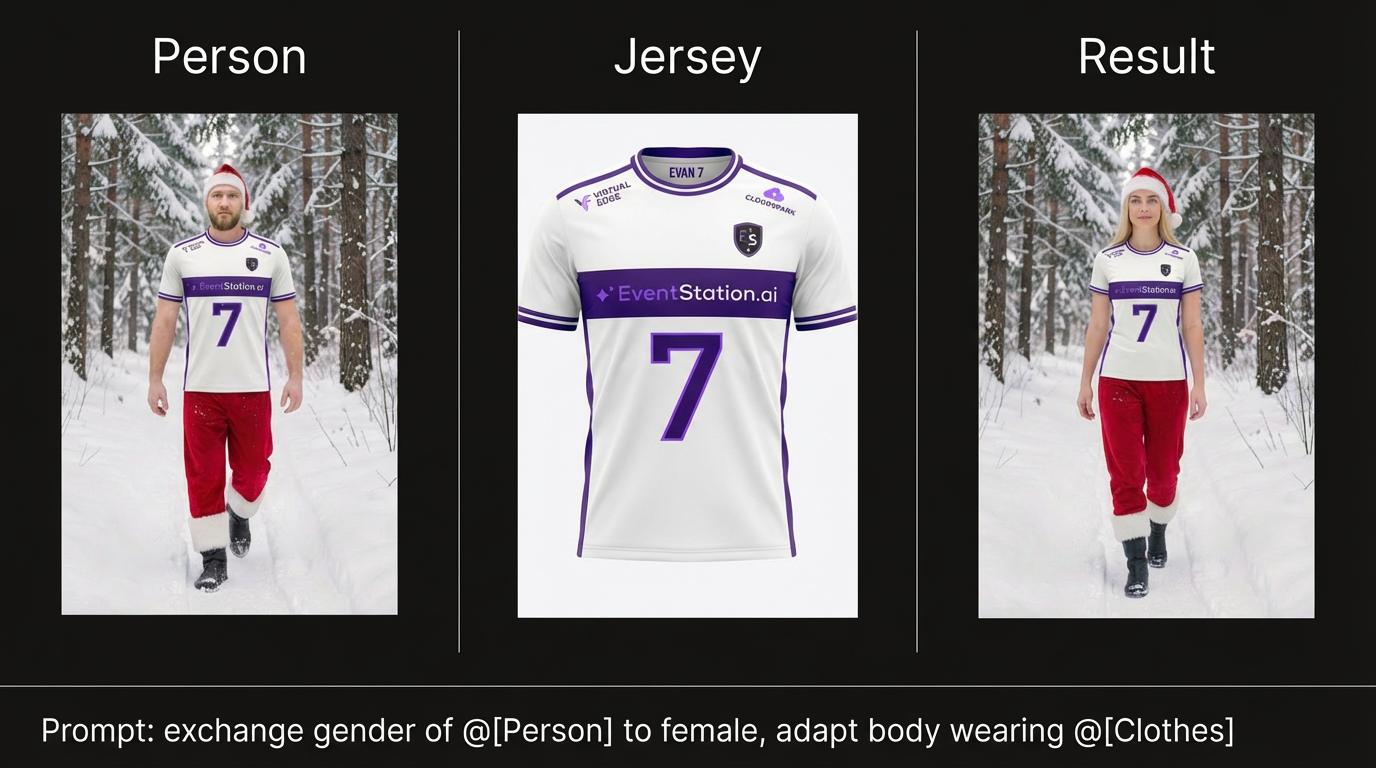
Adapt a person to different demographics. Create & adapt photos to create different gedner or age-specific Filter versions-
This mode swaps the gender (and optionally age) of a person in an image. Especially powerful when combined with Inpainting transformation logic for controlled edits. Clothing can be specified to ensure visual consistency. Best for demographic adaptations (e.g. create unique body's for female/male adults and even kids).
Input Options
- Person Image
- Clothing (optional but recommended for precision)
Example 1
Example 2
Mode 4: Upscale
Increase image resolution for production use.
Upload your base image and optional reference assets to enhance detail and output quality.
Input Options
- Image
- Person (optional)
- Clothes (optional)
- Additional references (optional)
Use when maximum sharpness and resolution are required.
Mode 5: Free Prompting
Maximum creative freedom. Upload unlimited reference images and define your scene entirely through text. No structural constraints — full generative flexibility. Best for rapid concept exploration and experimental visuals.
Input Options
- Unlimited image uploads
- Text prompt
Prompt Example 1
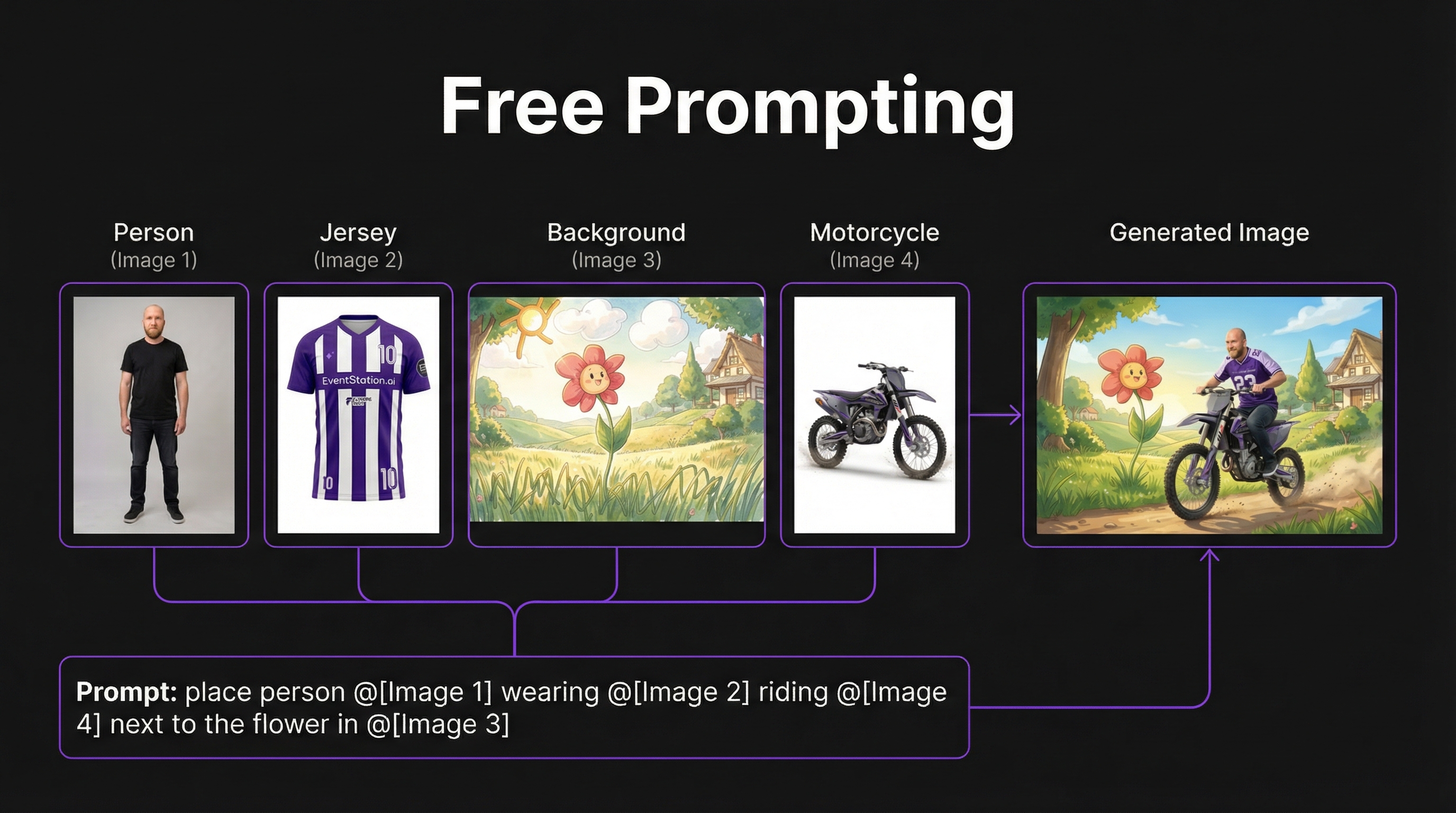
Prompt Example 2
Mode 6: Background Remover
Extract subjects instantly.
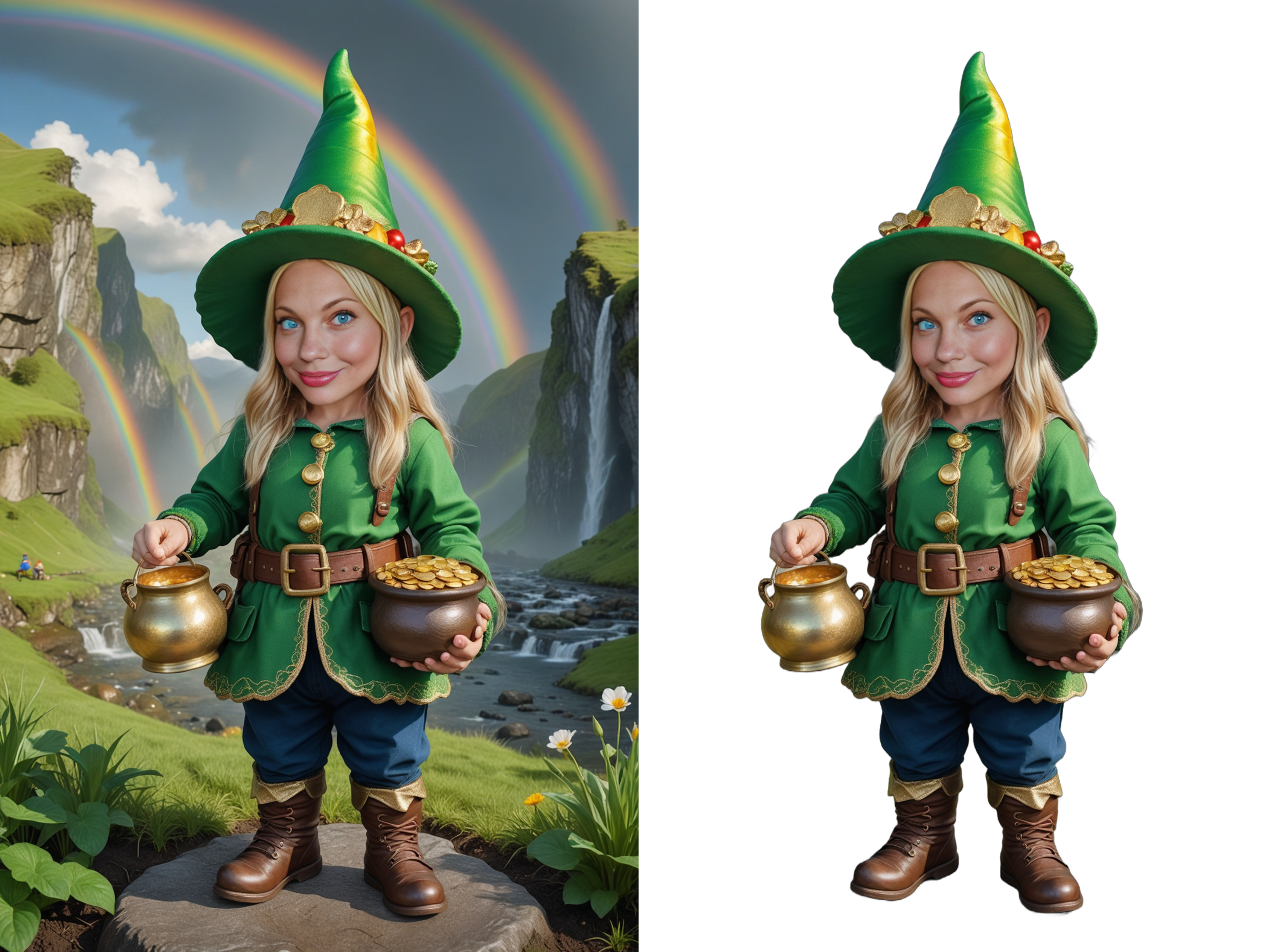
Upload an image and automatically remove the background. The output can be reused in other Conceptualizer modes or filter logic. Used for clean subject isolation and flexible scene composition.
Input Options
- Image
Example 1
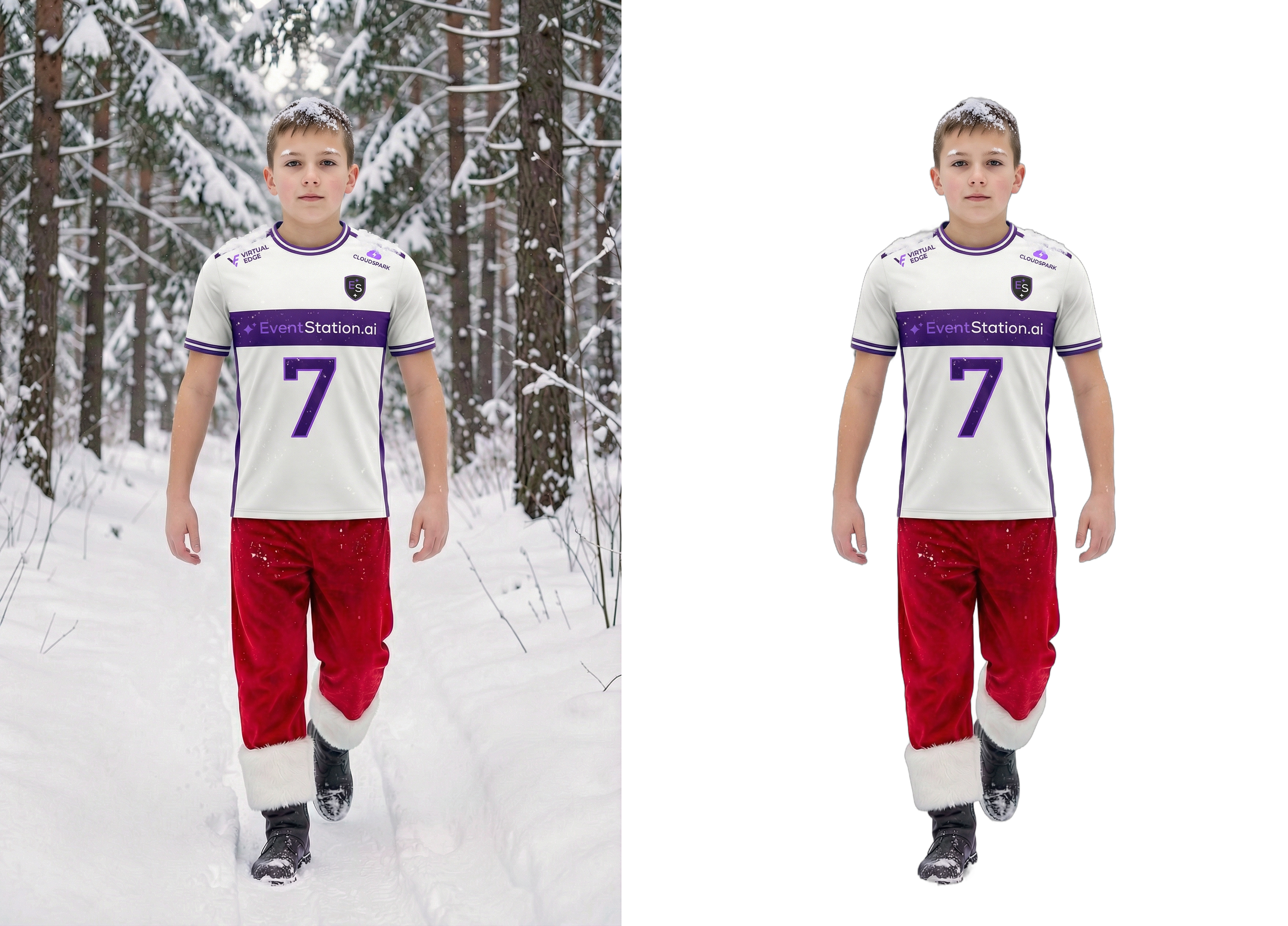
Example 2