Skip to content

Filter Creator Webapp

Multiswap realistic txt2img

Free Prompt
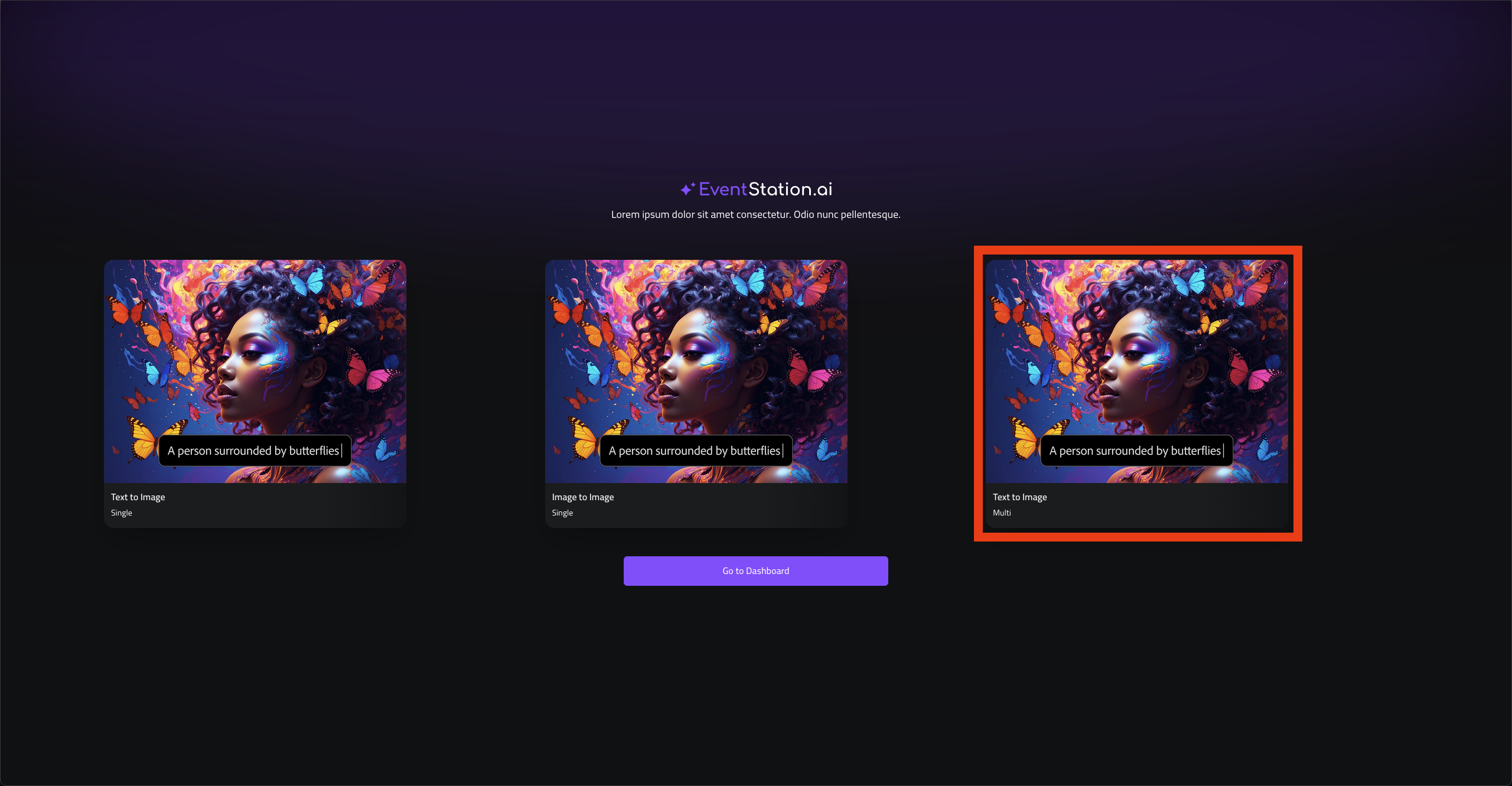
1. Go to filter-creator.eventstation.ai and Select Text to Image (Multi)

Screenshot 2025-11-28 at 17.01.16.png

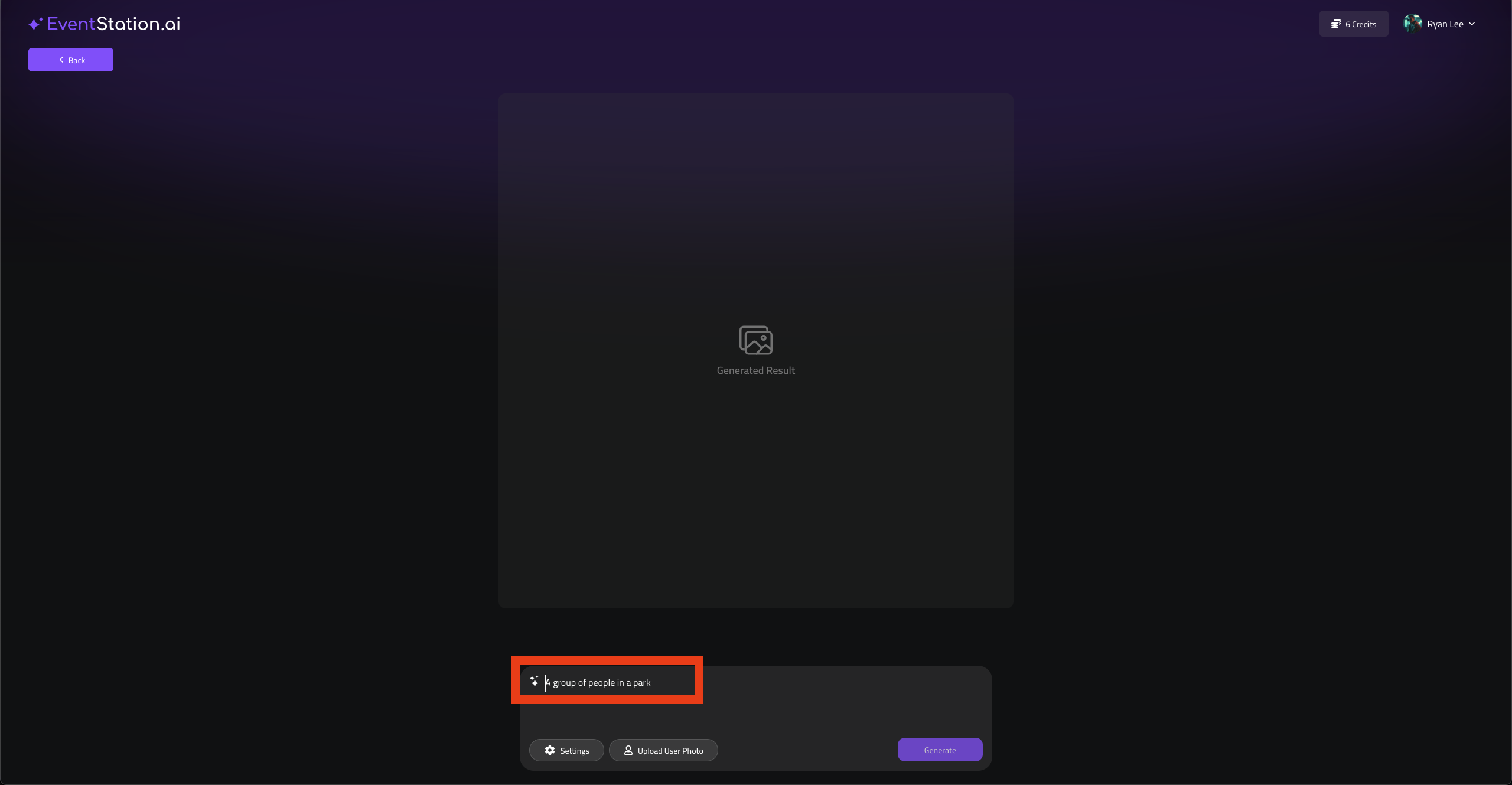
2. Enter a prompt

Screenshot 2025-11-28 at 17.03.18.png

3. In your Settings, choose “Realistic”, “Free” and add a negative prompt
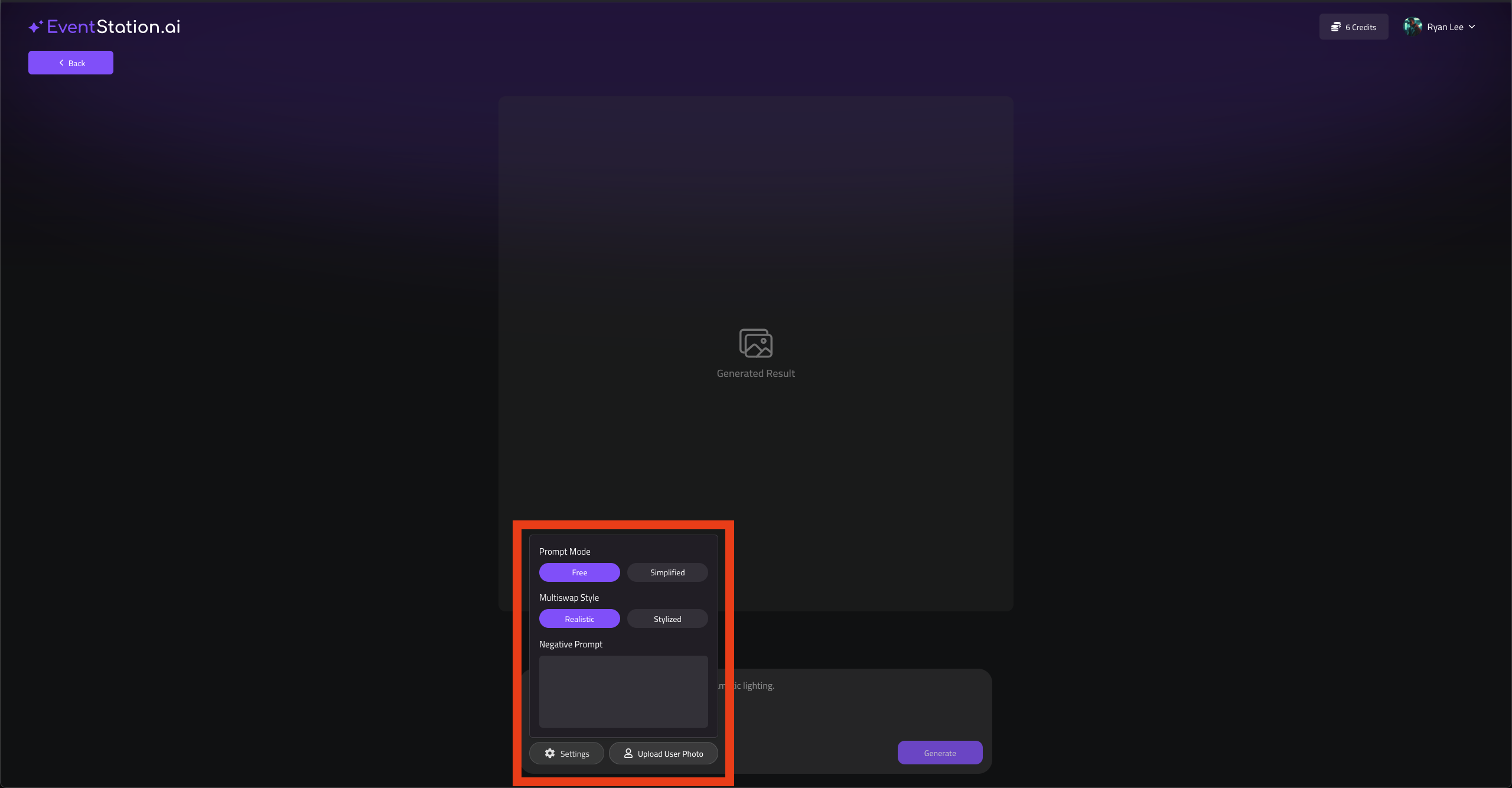
Screenshot 2025-11-28 at 17.15.51.png

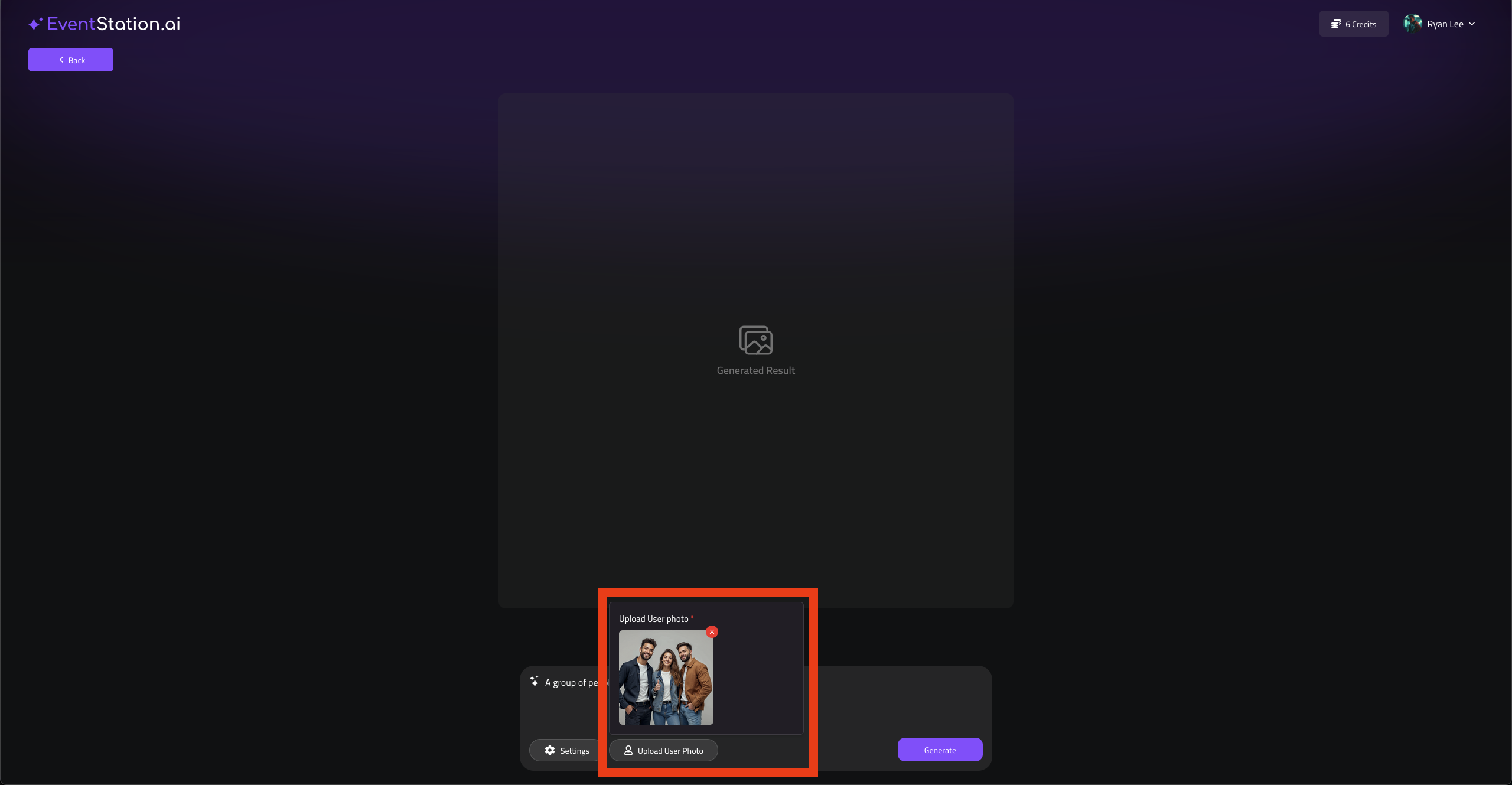
4. Upload a User Input Image

Screenshot 2025-11-28 at 17.05.06.png

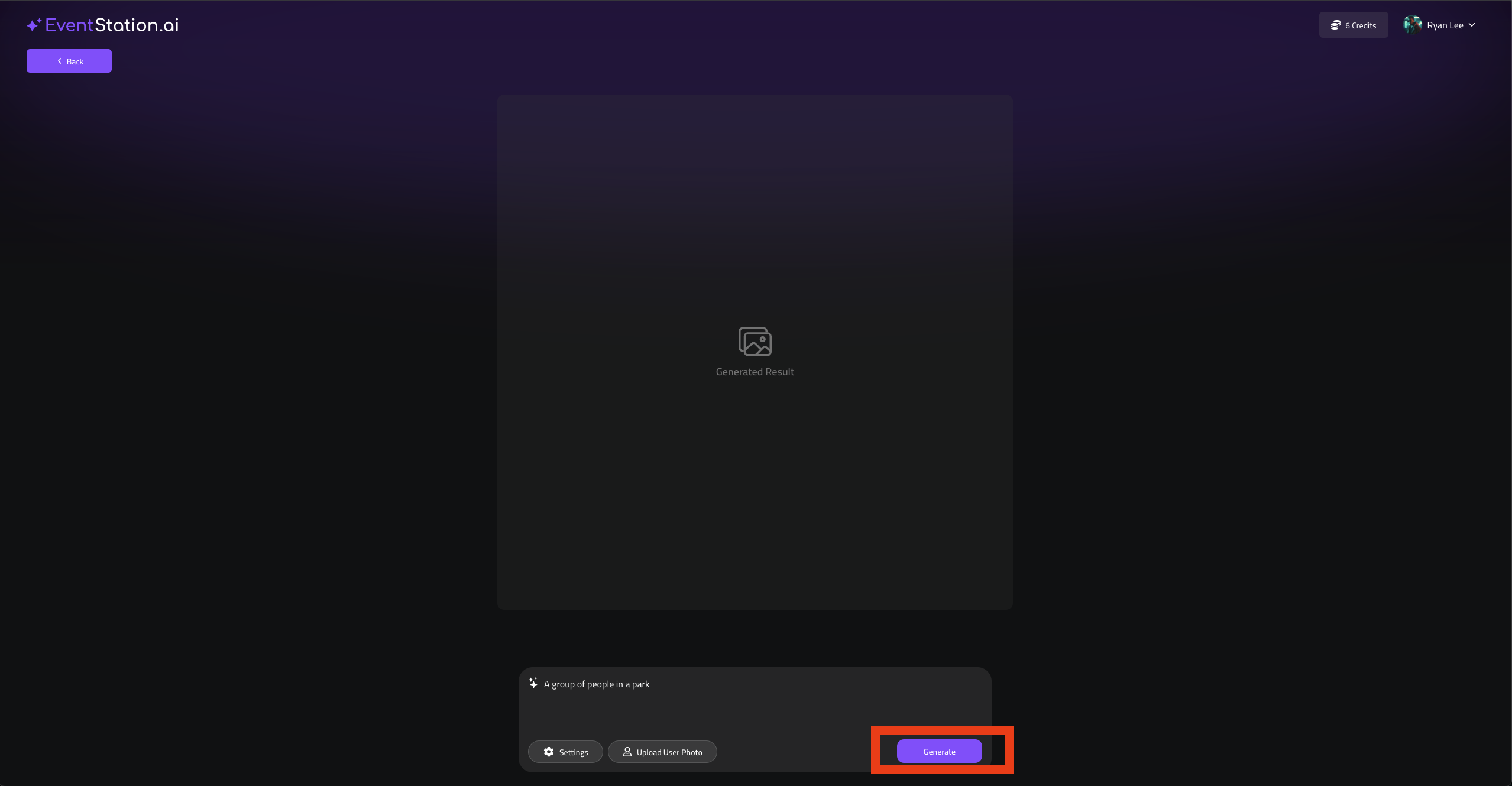
5. Hit Generate

Screenshot 2025-11-28 at 17.05.54.png

8. If you are satisfied with the result, Hit Create Filter
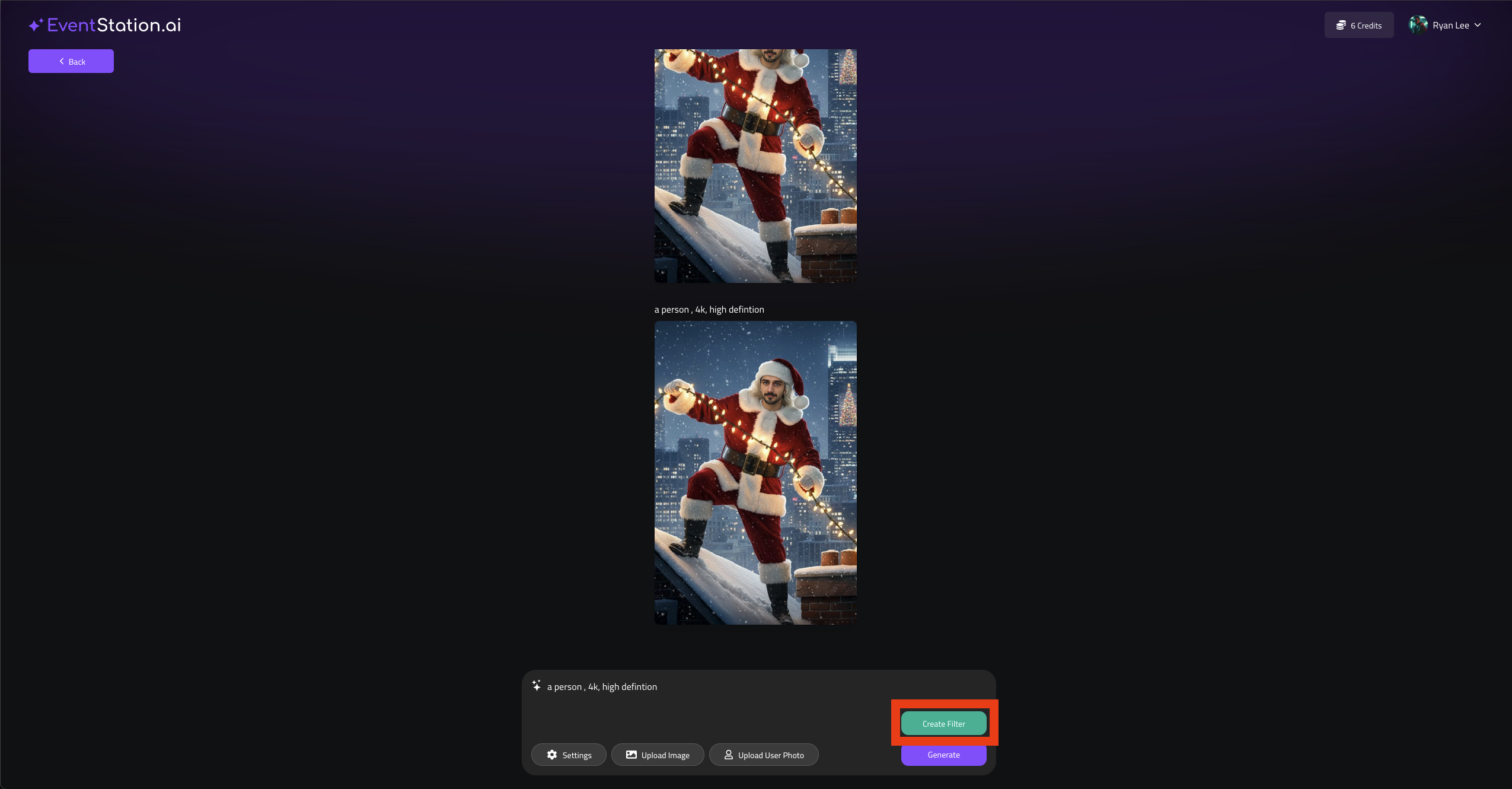
Screenshot 2025-11-28 at 16.51.24.png

9. Provide a Project Name, a Description and a Preview Image
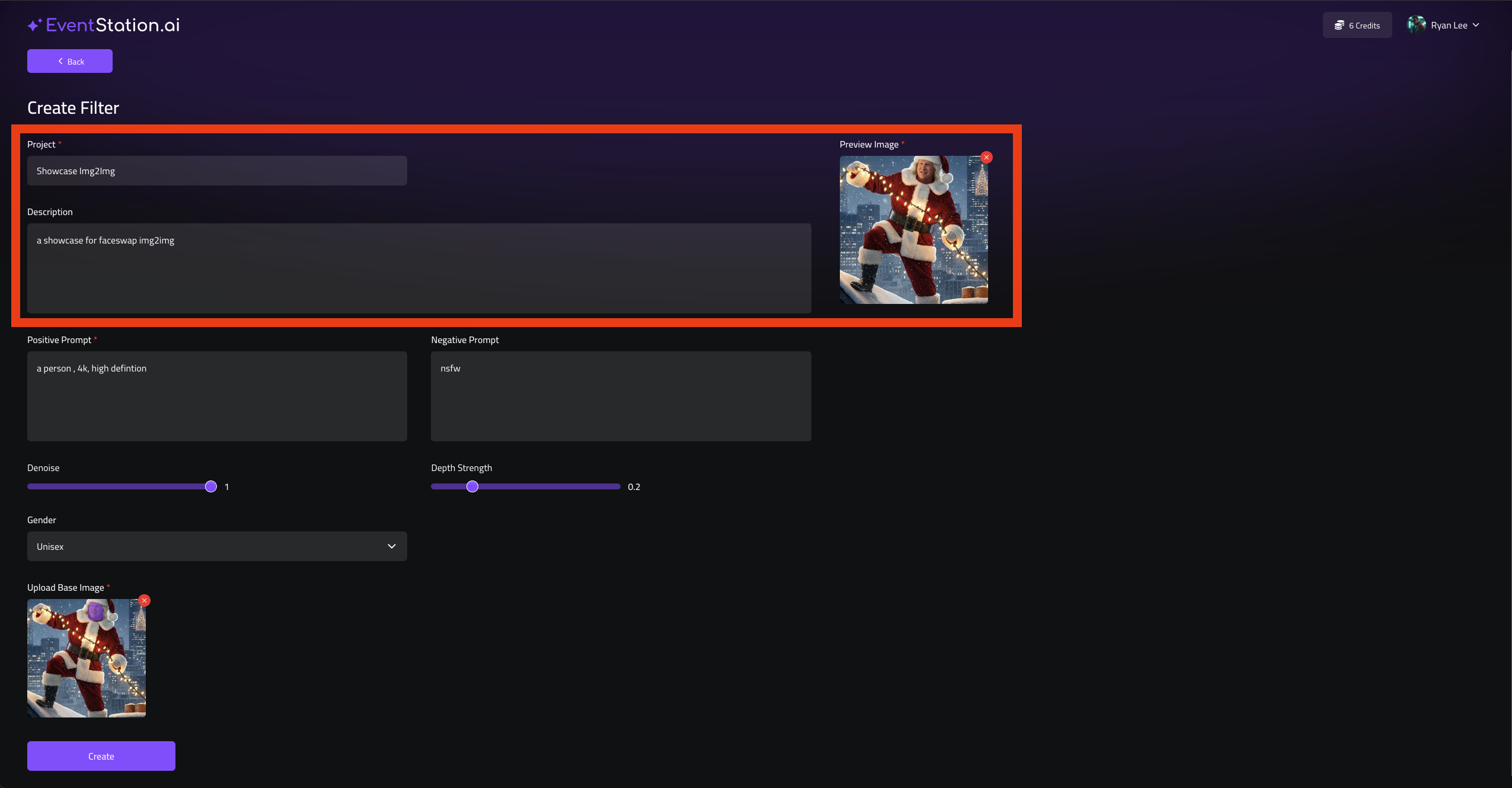
Screenshot 2025-11-28 at 16.52.52.png

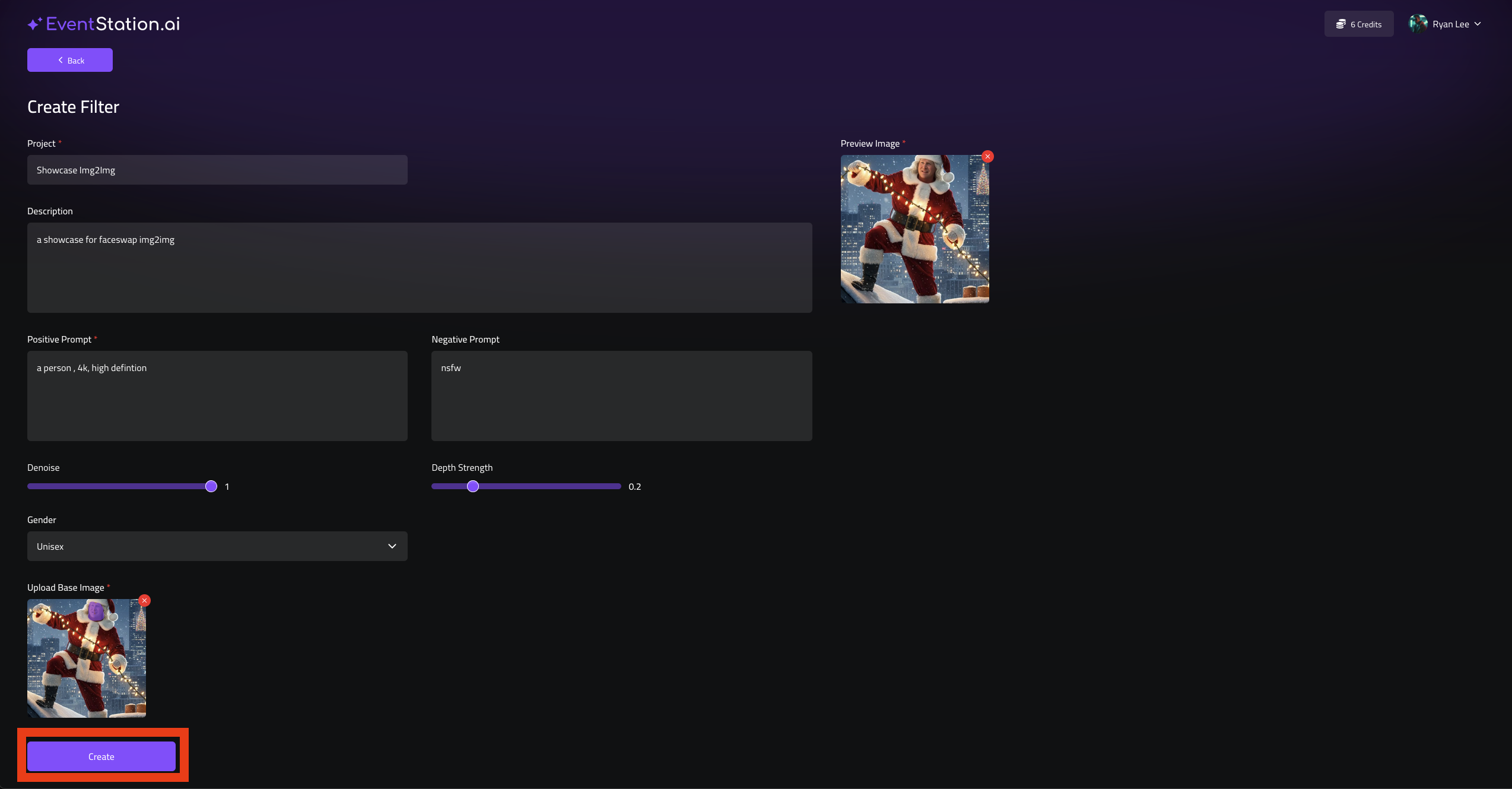
10. If everything is set hit Create

Screenshot 2025-11-28 at 16.54.02.png

11. You will be prompted to perform a QA, hit Yes

To see how to QA-Test go to Section: How do i QA-Test?

Simplified Prompt

1. Go to filter-creator.eventstation.ai and Select Text to Image (Multi)

Screenshot 2025-11-28 at 17.01.16.png

2. In your Settings, choose “Realistic”, “Simplified” and add a negative prompt

Screenshot 2025-11-28 at 17.15.51.png

3. Add a prompt for Clothes and Scenery
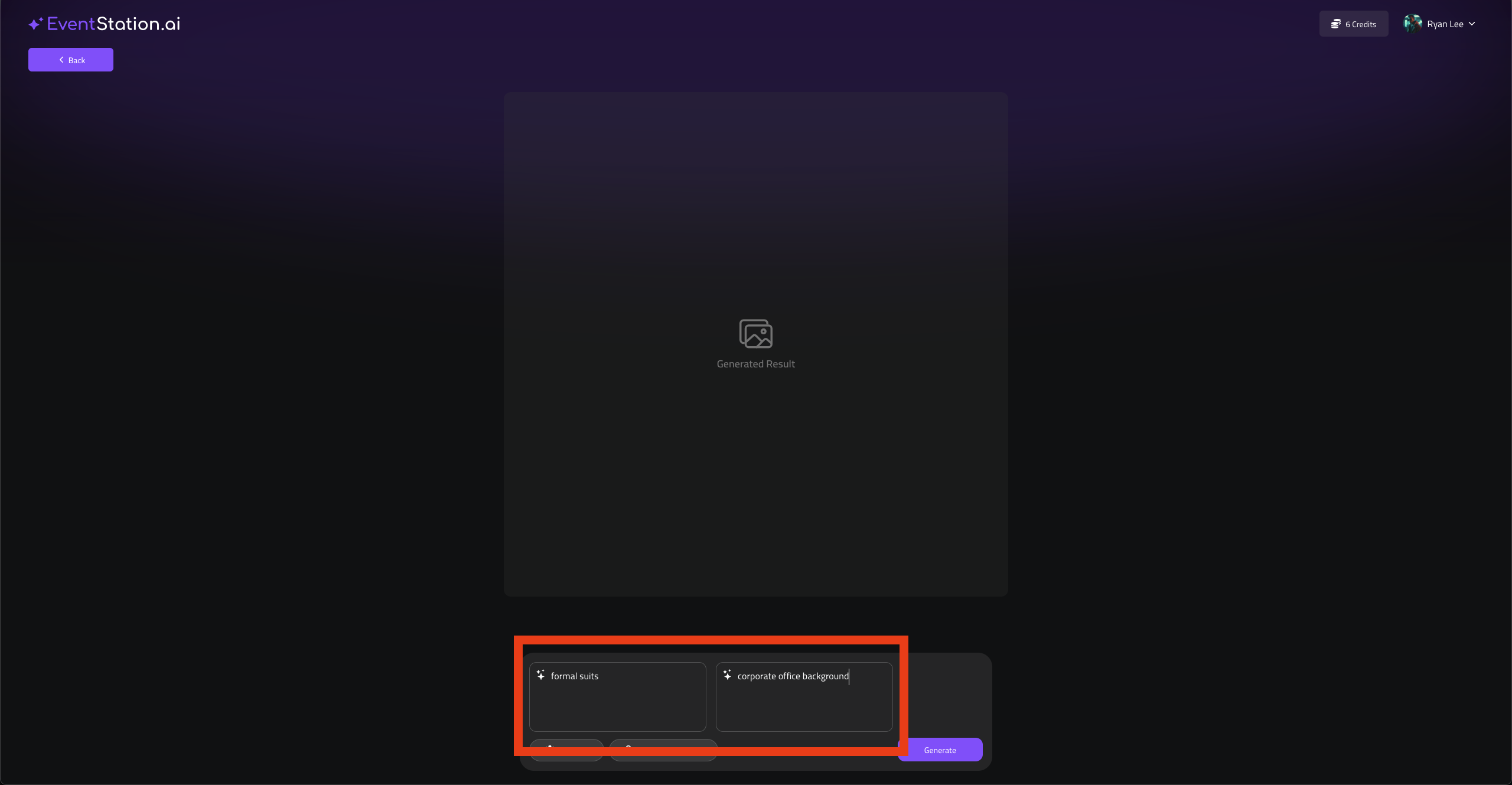
Screenshot 2025-11-28 at 17.22.24.png

4. Upload a User Input Image

Screenshot 2025-11-28 at 17.05.06.png

5. Hit Generate

Screenshot 2025-11-28 at 17.05.54.png

8. If you are satisfied with the result, Hit Create Filter

Screenshot 2025-11-28 at 16.51.24.png

9. Provide a Project Name, a Description and a Preview Image

Screenshot 2025-11-28 at 16.52.52.png

10. If everything is set hit Create

Screenshot 2025-11-28 at 16.54.02.png

11. You will be prompted to perform a QA, hit Yes

To see how to QA-Test go to Section: How do i QA-Test?