Faceswap: IMG2Filter
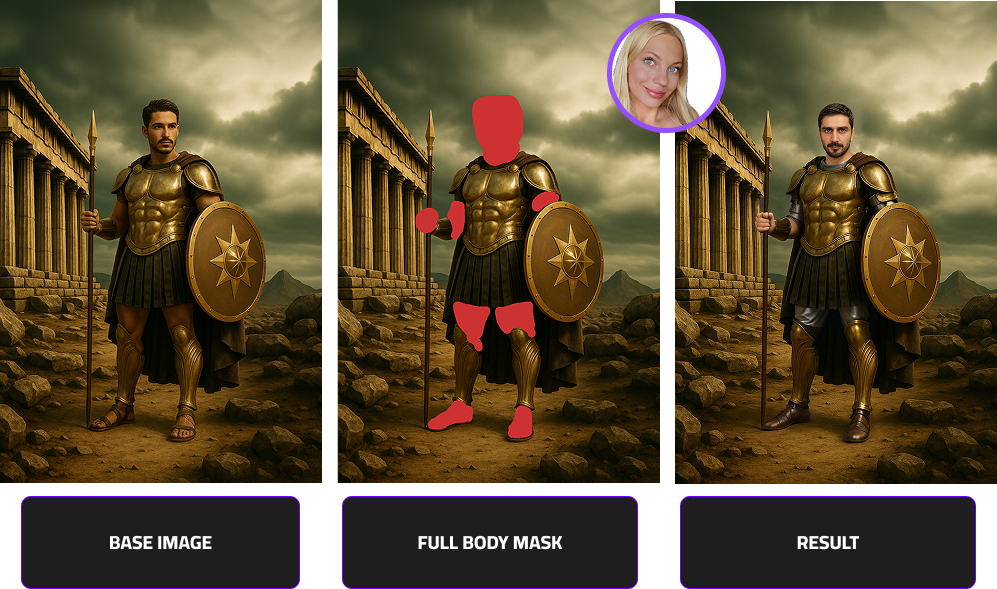
Image-to-Filter allows you to transform any image — whether it’s created using tools like ChatGPT, our AI image generators, or even photos provided by your clients — into a fully usable AI filter for your next event.
In this guide, you’ll learn:
- How to create and upload your own image-based filters
- How to write effective prompts and how to mask for img2filter
- The essential do’s and don’ts for achieving consistent results
- And how to implement your filters directly within your EventStudio experience
Get ready to turn inspiration into interactive AI filters that make every event unforgettable.
Getting Started with Img2Filter
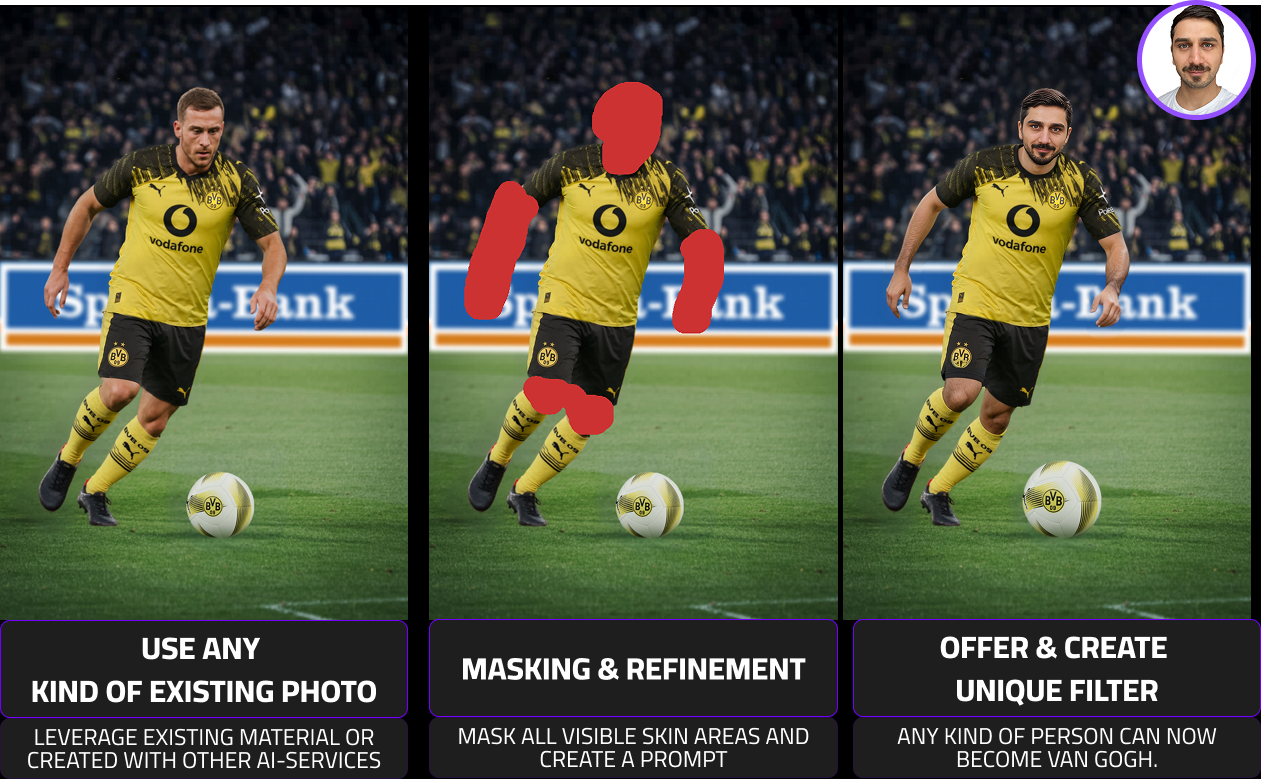
Img2Filter transforms selected regions of an image while preserving the subject’s structure and identity. It uses:
- an input image,
- a mask to define the area of change,
- and the user’s face image to personalize the transformation.
What Kind of Images Can I Use?
You can use any input image that matches the concept or style you want.
Inspiration sources include:
- Our Text2Image tools
- ChatGPT for text-to-image prompts
- Midjourney, http://Leonardo.ai , or similar tools
Image Size
- Longest side: 1200px
- Larger images = slower processing (not better quality)
- Very small images = loss of detail
What Are the Prerequisites?
Before you begin, ensure you have the following:
Input Image and Face Image Guidelines
- Face must be clear and unobstructed (no hands, masks, or visors)
- Use front-facing photos with minimal head turn or shadow
- Ensure even lighting and sharp focus
Mask Input
Masks define the area of change in the input image.
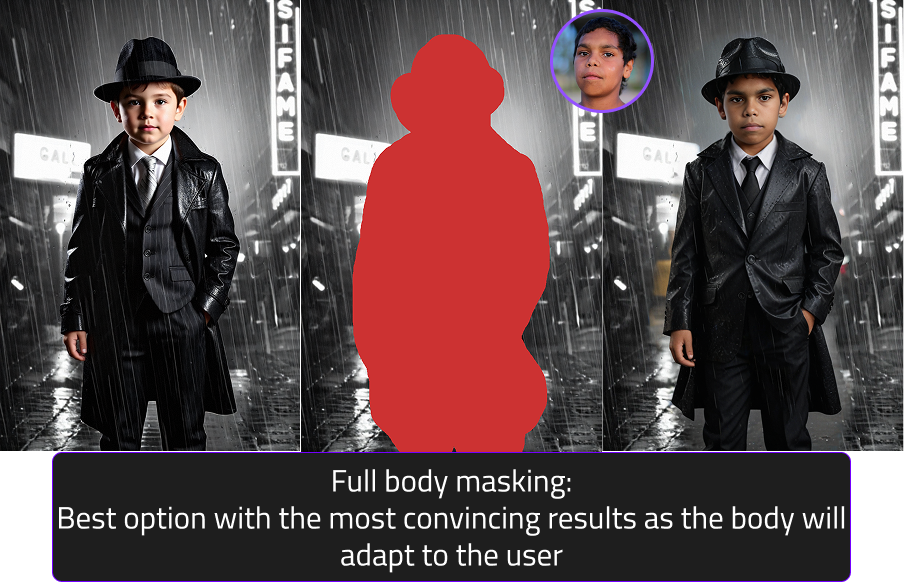
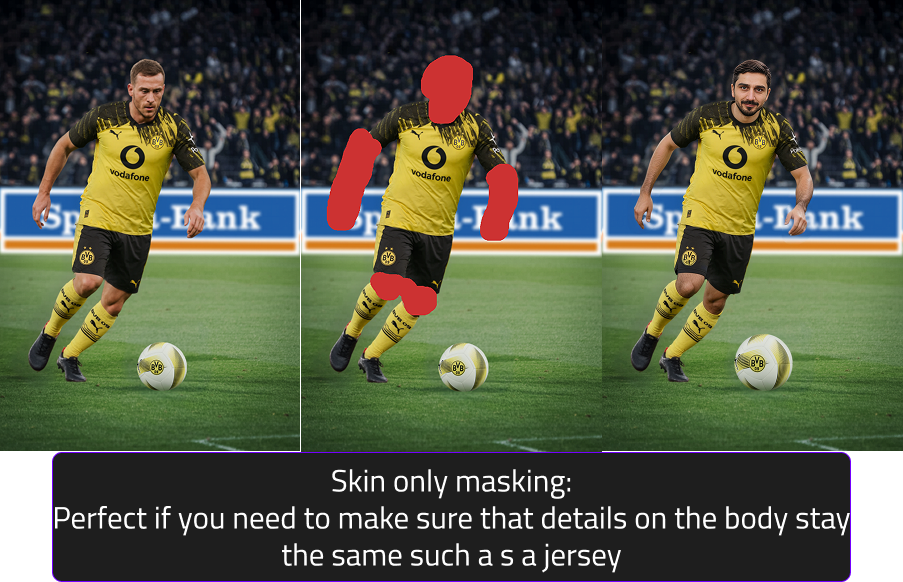
Two main types of mask annotations:
- Skin-only inpaint
masks drawn only over visible skin areas (face, arms, etc.) - Full-body inpaint
masks cover the entire human subject in the input image
Full body inpaint
Skin only inpaint
Tips for drawing masks
- Masks should be rough, general shapes
- Avoid tracing the subject exactly
- Keep it loose and soft-edged so filters can adapt to different body types and poses
- The goal is to define a general region, not a precise cutout
Watch our video to learn the theory in mask drawing. Buttoon
Prompting: From Theory to Reality (How to Use It in the Webapp)
To learn how to prompt for Image-To-Filters, please view our video guide to learn exactly how to prompt.
✅ Do
- Be specific but brief — focus on visual details
- Use keywords (style, lighting, composition)
-
Match your prompt to the input image
-
Example: if the input shows a character in a utility vest running, don’t prompt “a person in a jacket crouching.”
-
Add negative prompts to block unwanted elements
-
Example:
negative prompt: helmet, hat, sunglasses, weapon
❌ Avoid
-
Don’t use indirect phrases
-
❌ “astronaut without a helmet”
- ✅ “astronaut” + negative: “helmet”
- Don’t mix too many ideas in one prompt
- Don’t change camera angles drastically
Advanced Settings
Denoise strength (0–1.0)
Controls how much the output deviates from the input image.
- Values 1-0.7 → average changes (recommended)
- Lower values preserve more original detail but likness of user can be too low
Depth strength (0–1.0)
Controls how strictly shape/pose is maintained.
- Very high values (0.7–1.0) reduce flexibility
- Recommended: 0.2–0.4
Hand deformity fixes
If results show hand issues:
- Slightly lower denoise (but not below 0.5)
- Increase depth strength
- Use input images with gloved or partially obscured hands
Filter Examples
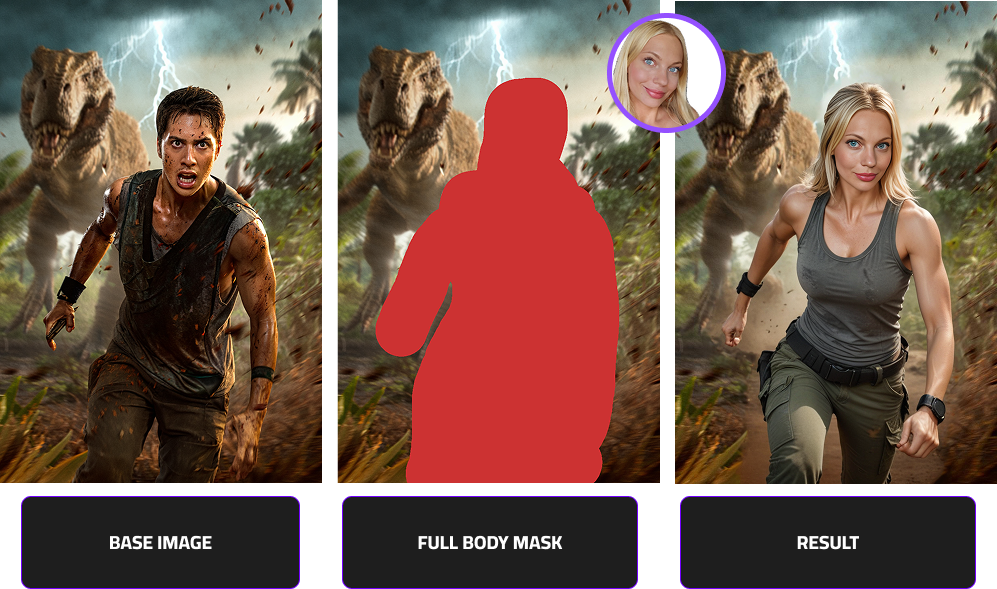
Filter example: Action Jungle Scene
Prompt:
photo of confident person in action movie style, wearing a dirty grey tank top and jungle attire angry expression, looking at the camera, high quality
Masking Reasoning:
Full body mask since no necessary details on the body need to stay identical (like a jersey)
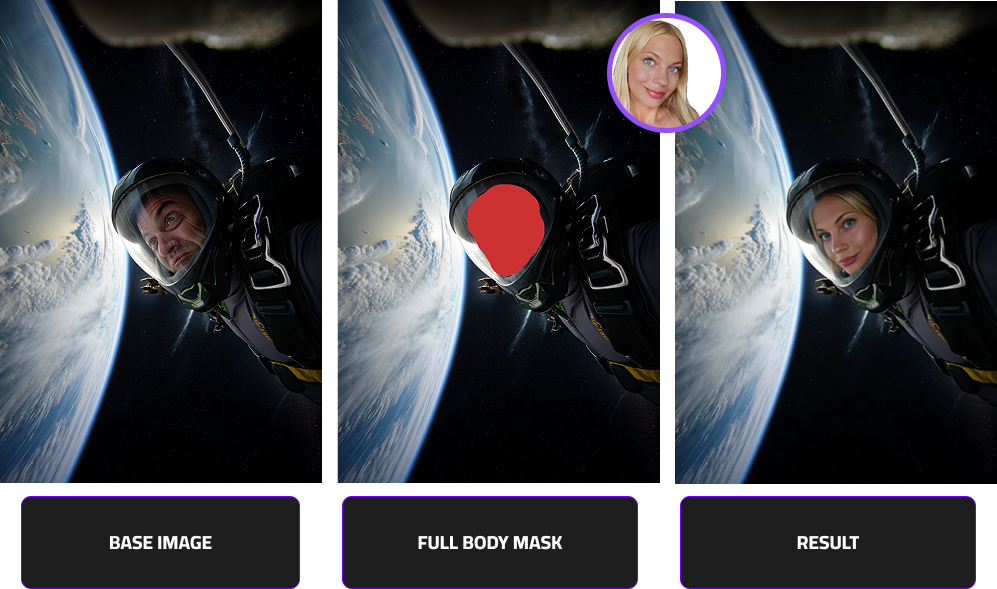
Filter example: Astronaut in space
Prompt:
photo of a confident person wearing a astronaut helmet, focused expression, looking at the camera, high quality, 16k,
Masking Reasoning:
The body fits well in the scenery and looks unisex, so no full body mask required.
Filter example: Roman Warrior
Prompt:
photo of a confident person, confident expression, looking at the camera, high quality
Masking Reasoning:
The armor must stay identical, so only visible skin areas are masked.
If this filter should work for females/children, additional base images are needed.