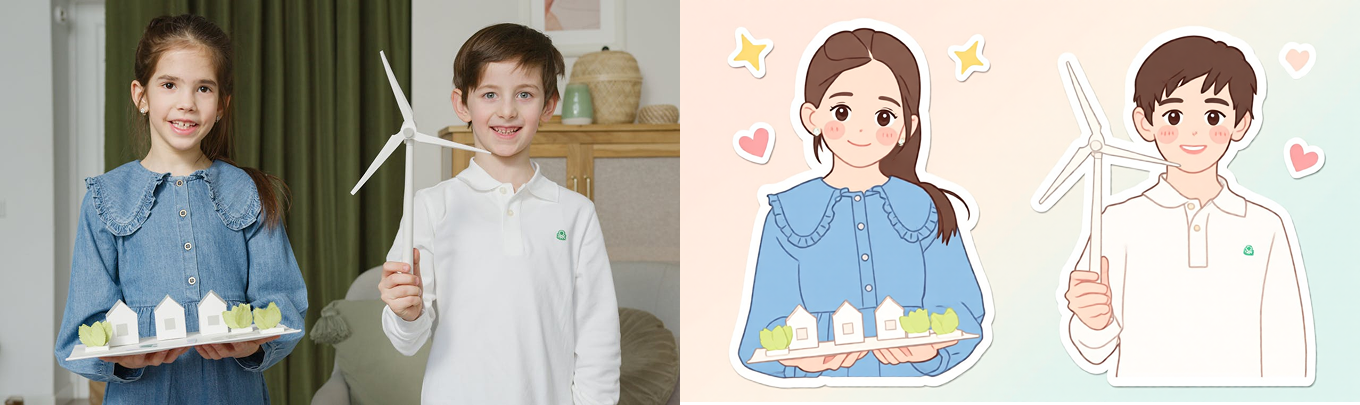
Multiswap Text2Filter
With MultiSwap Text2Filter, you can create your own multi-person filters (for up to 5 people) using simple text prompts.
By describing your desired style, scene, or outfit, the AI transforms your group into new, visually stunning results — while keeping every person’s real identity, pose, and emotion intact.
MultiSwap offers two distinct modes to match your creative goals:
- Realistic Mode – focuses on lifelike accuracy, preserving natural facial features and expressions while changing outfits or scenes.
- Stylized Mode – turns your group into artistic, creative interpretations such as paintings, 3D renderings, or animated styles.
In this guide, you’ll learn:
- How to write effective prompts for MultiSwap Text2Filter
- The key do’s and don’ts for achieving natural, high-quality group results
- And how to save and use your custom filters at your next event
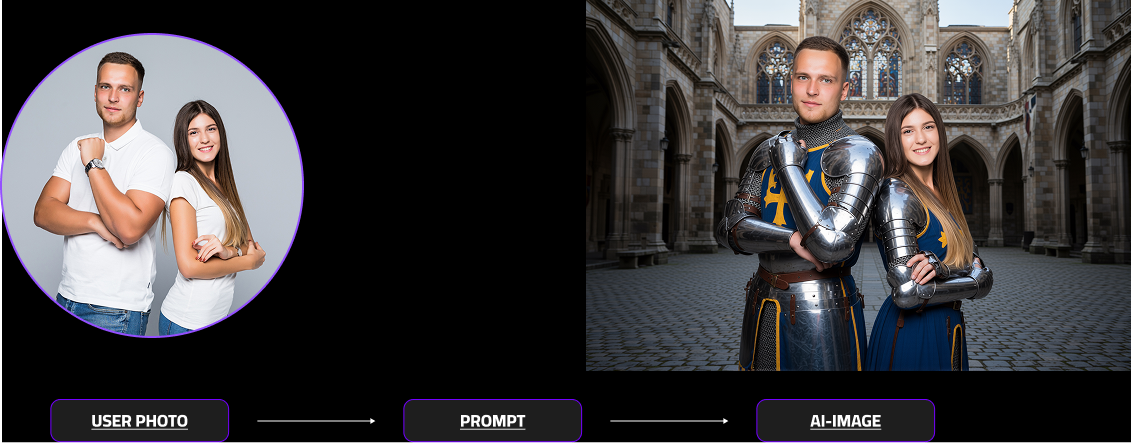
Getting Started with Multiswap text2filter
MultiSwap Text2Filter allows you to create personalized group filters through text prompts.
By simply describing the desired scene, style, or outfit, the AI automatically transforms up to five people in the image — while keeping their real faces, expressions, and poses perfectly intact.
What Kind of Images Can I Use?
Image Size
- Max side: 1200px
- Larger images = slower processing (not better quality)
- Very small images = loss of detail
What Are the Prerequisites?
Input photos
DOs — What Works Best
- Use well-lit photos (natural or soft studio light preferred)
- Keep heads facing forward or slightly angled
- Choose high-resolution images with clear facial details
- Ensure all faces are fully visible — no obstructions, sunglasses, or hands
- Prefer close-up or medium upper-body shots for best identity retention
- Keep the group size between 1–5 people for consistent transformations
DON’Ts — Common Mistakes
- Blurry, pixelated, or low-resolution selfies
- Side profiles or extreme angles
- Harsh lighting or strong shadows
- Hats, masks, or filters covering faces
- Very wide shots where faces are too small to detect accurately
Prompting: From Theory to Reality for Multiswap Realistic
Prompting is how you recall the keyword to your AI. It’s not about writing more — it’s about writing smarter.
🔧 Realistic Mode Prompt Structure
Formula:
“Preserve face and body from the image.
Place the subjects in [SCENE].
Dress them in [OUTFIT].
Apply [LIGHTING / MOOD].”
Example:
“Preserve face and body from the image. Place the subjects in the Colosseum at sunset with banners and stone pillars, and dress them in gladiator armor with no helmet.”
🎨 Stylized Mode Prompt Structure
Formula:
“Turn the image into a [ART STYLE] artwork with [TEXTURE / BRUSHWORK] and [COLOR PALETTE];
preserve faces and original pose; group-friendly.”
Example:
“Turn the image into a Van Gogh–style portrait with thick swirling brushstrokes and vibrant blue/yellow tones; preserve faces and original pose; group-friendly.”
Note:
Prompting in Multiswap should be approached holistically — prompting separate outfits for each subject is not recommended.
✅ Do (Multiswap-Correct)
- Keep prompts simple and focused
- Mention only environment, outfit, and overall mood
-
Use clear replacement phrasing
-
“Place the subjects in [SCENE]…”
- “Dress them in [OUTFIT]…”
- “Apply [LIGHTING]…”
-
Align your prompt with the existing pose and framing
-
Describe only what can actually change: scenery, wardrobe, atmosphere
❌ Don’t (Multiswap-Correct)
- Don’t describe new poses or actions — Multiswap does not modify body positions
- Don’t request new camera angles or perspectives — the original composition remains fixed
- Don’t assign different outfits to each person — one consistent wardrobe style recommended
- Don’t mix multiple scenes or unrelated concepts — stick to one environment & one outfit
Aspect ratios with multiswap
When using multiswap, your input image aspect ratio will define the AI output aspect ratio.
Depending on format and distance to camera, prompts may behave differently.
Always test your prompt in the intended production setup.
Prompting: From Theory to Reality for Multiswap Stylized
(Content continues as referenced above)
Advanced Settings Multiswap Realistic
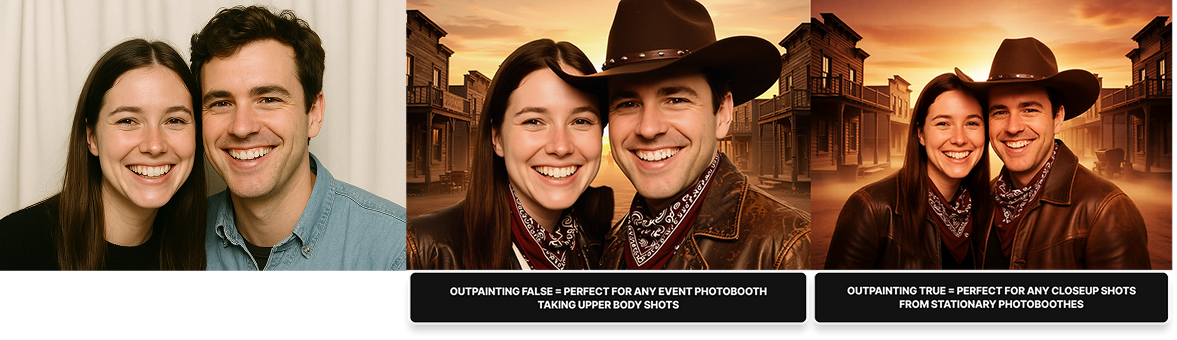
Outpainting in MultiSwap Realistic expands extremely close-up group photos by inferring the missing context — upper bodies, clothing, and surrounding details — to create a natural, wider scene.
- Only meant for true close-ups (photo booths or tight setups)
- Using it on regular portraits or medium shots can produce distorted outputs
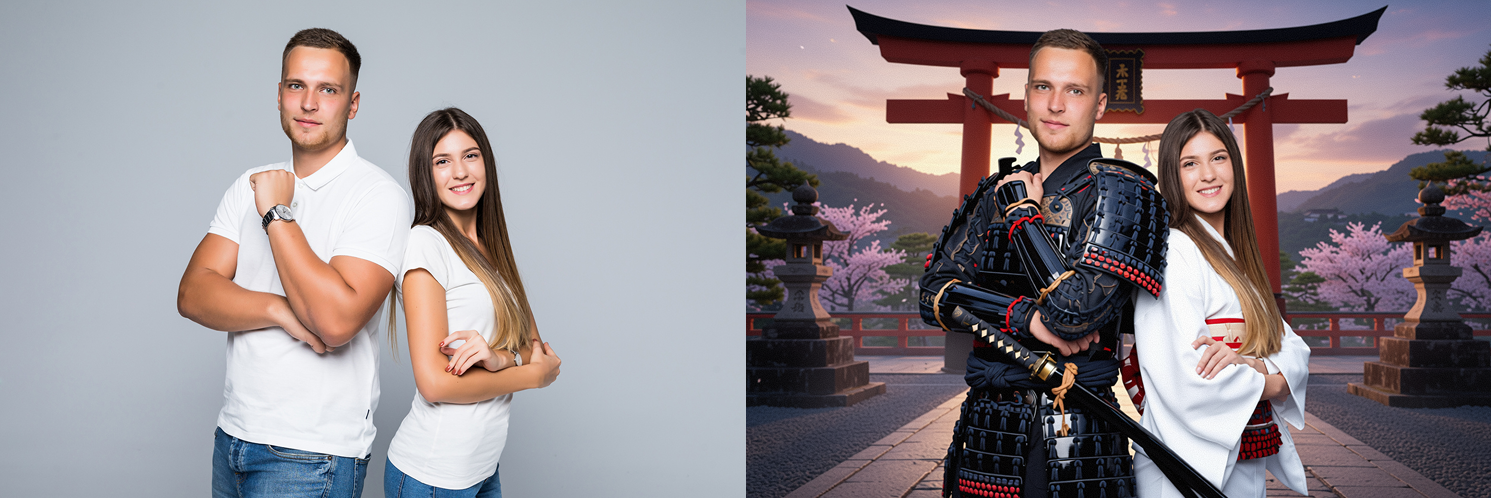
Filter Examples
Prompt example Multiswap Realistic: Samurais at ancient temples
PLACE: japanese samurai clothes without helmet
Clothes: ancient japanese temple shrine, epic scenery
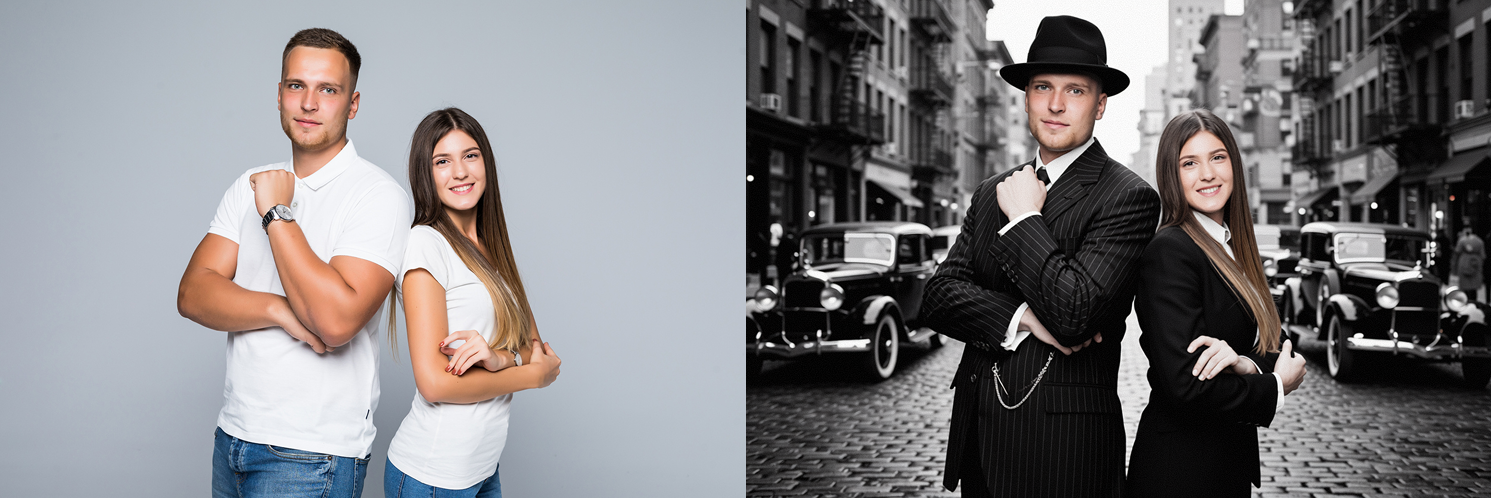
Prompt example Multiswap Realistic: 1920 Mafia New York
PLACE: 1920s mafia suit look
Clothes: 1920 black white new york street, oldtimer cars
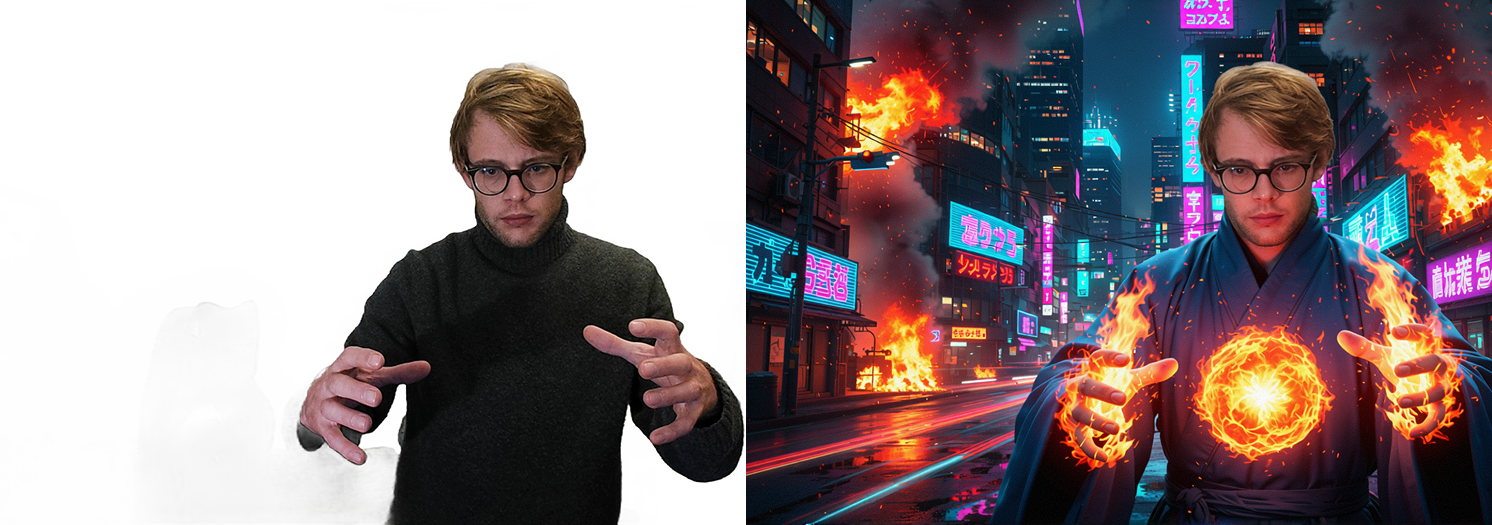
Prompt example Multiswap Realistic: Fire Monk casting spells
PLACE: blue monk coat casting flames in his hand, fireball between his hands
Clothes: burning cyberpunk streets, burning buildings, tokyo
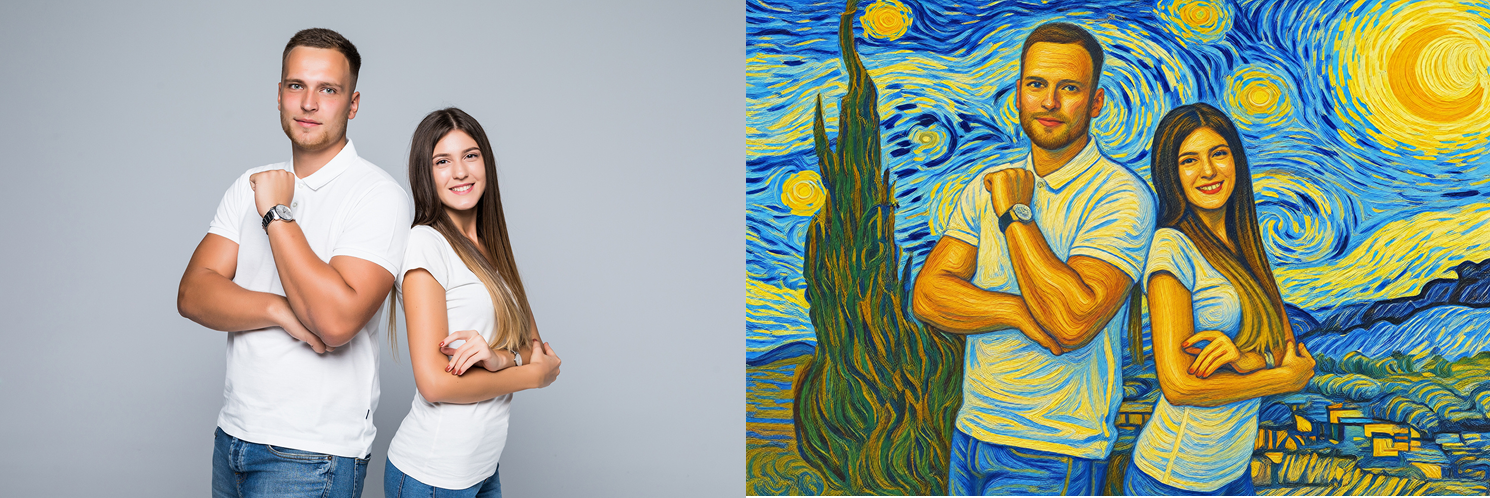
Prompt example Multiswap Stylized: Van Gogh Painting
Turn the image into a Van Gogh-style portrait with thick swirling brushstrokes and vibrant blues/yellows; preserve faces and original pose; group-friendly.
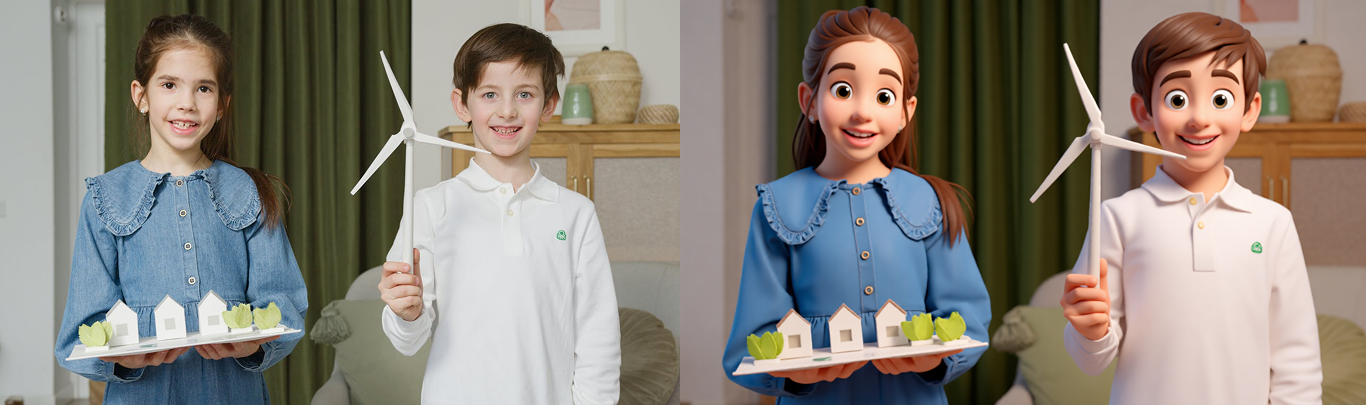
Prompt example Multiswap Stylized: 3D animation Style
Turn the photo into a playful 3D animated style with rounded features, glossy shading, and vibrant colors; preserve faces.
Prompt example Multiswap Stylized: Kawaii Sticker Collage
Turn the photo into a kawaii sticker collage with pastel colors, doodle stars and hearts, clean white cutout outline; preserve faces.