WebApp Help Center > Media & Event Tools
Overview Functions for Gallery
Overview: Gallery Functions
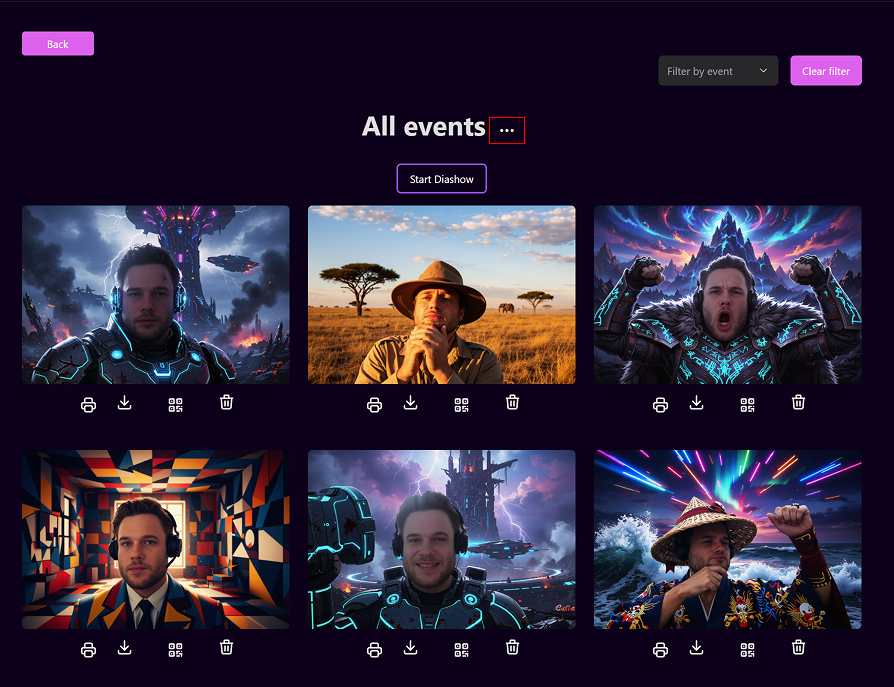
The Gallery is your central hub for viewing and managing all images generated across your events.
Here, you can explore, download, print, or display your AI-generated photos — whether from a single event or your entire account.
Viewing Your Images
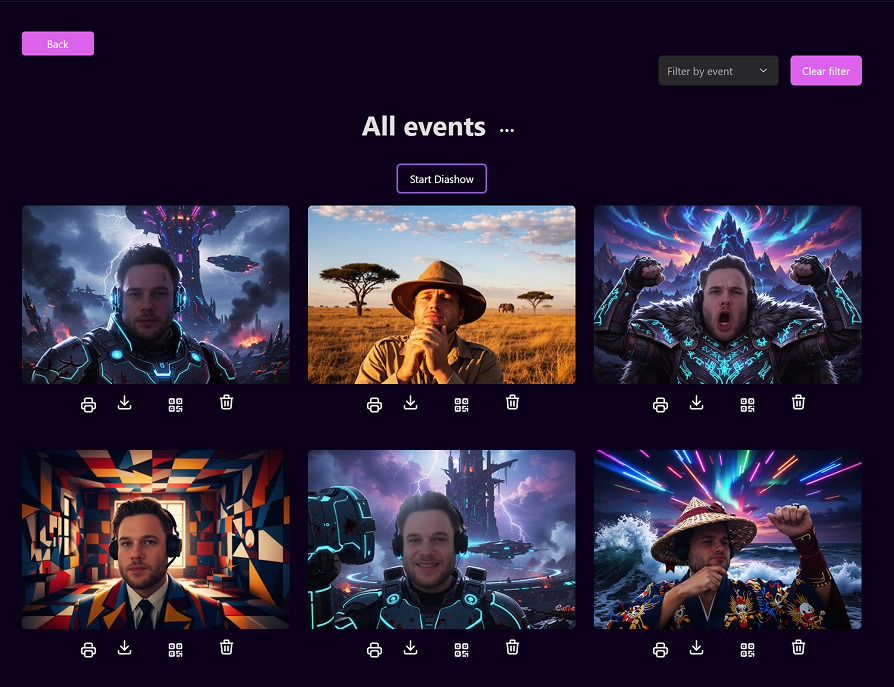
- By default, the gallery shows all generated images from all events.
- Each image card includes action icons below the preview for quick management.
Available Actions (Below Each Image)
- 🖨️ Print – Instantly print the selected image.
- ⬇️ Download – Save the image locally in high quality.
- 🔲 QR Code – Generate a QR code for fast sharing and mobile downloads.
-
🗑️ Delete – Permanently remove the image from your gallery.
-
Note: Deleted images cannot be recovered.
Filter by Event
- Use the “Filter by Event” dropdown (top-right corner) to display images from a specific event.
- Easily switch between event-specific galleries.
- Click “Clear Filter” to return to viewing all images from all events.
Start Diashow
- Click “Start Diashow” to launch a fullscreen slideshow that automatically cycles through your images.
- Perfect for displaying live results on a secondary screen during events.
- The slideshow updates every few seconds, adding newly generated images in real time.
Download Center
The Download Center helps you collect and download all images from your events quickly.
- Access it via the three dots (⋯) icon at the top of the Gallery page.
- Ideal for exporting all images after large-scale events or activations.
💡 Tip:
Use the Download Center to efficiently gather all photos from one or multiple events.
We created a dedicated guide explaining the Download Center in detail:
➡️ Access Download Center Guide