WebApp Help Center > WebApp System Requirements & Setup
How to Define the Ratio of my AI-Images
How to Define the Ratio
Different AI models require different ratio configurations:
- Faceswap Filters
Ratio is defined inside your Event Settings via the Event Manager. - Multiswap Filters
Ratio is defined in the Camera Settings when starting the experience.
Follow the steps below to set the correct ratio for each model.
How to Define the Ratio for Multiswap Filters
- From the Main Page, click “Start the Experience”.
- Select your event and click “Next” at the bottom of the page.
-
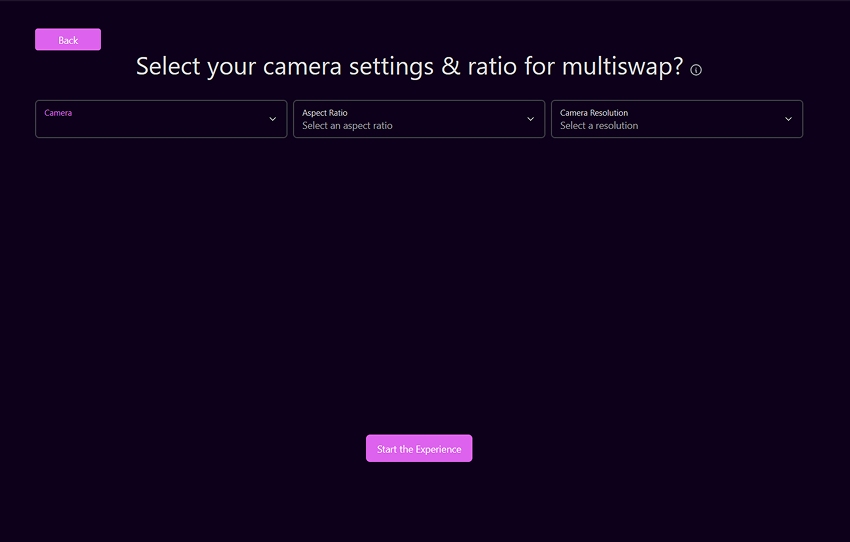
You will be taken to the Camera Selection screen.
-
Click on “Aspect Ratio”.
-
Choose your desired ratio (e.g., Portrait or Landscape).
-
This ratio will be applied to all Multiswap filters.
- In the Camera Resolution selector, choose your preferred output quality.
- Click “Start” — your camera will automatically resize according to the selected ratio.
How to Define the Ratio for Faceswap Filters
- From the Main Page, click “Event Manager”.
-
Select your event:
-
Modify an existing event by clicking the Pen Icon, or
- Create a new one by selecting “Create Event”.
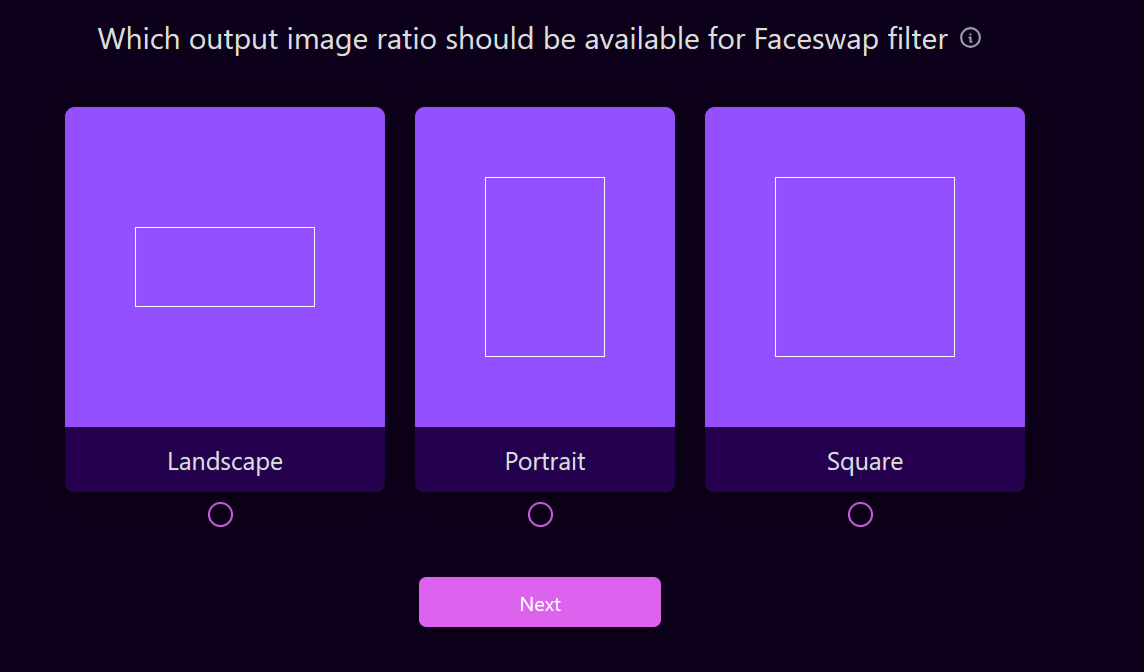
- After selecting the filters, you will reach the page:
“Which output image ratio...” -
Choose your desired ratio (e.g., Portrait or Landscape).
-
This ratio will be applied to all Faceswap filters.
- Continue through the setup process until the final step.
- Click “Create Event” (or Save) to ensure your modifications are applied correctly.
How to Define the Ratio When Using Both Multiswap & Faceswap Filters
If your event uses both AI models, you must set the same ratio for each model:
- Set the ratio for Faceswap via the Event Manager.
- Set the ratio for Multiswap via Start the Experience after selecting your event.
Important:
Do not use different ratios for the two models — this will lead to white borders or cropped output.