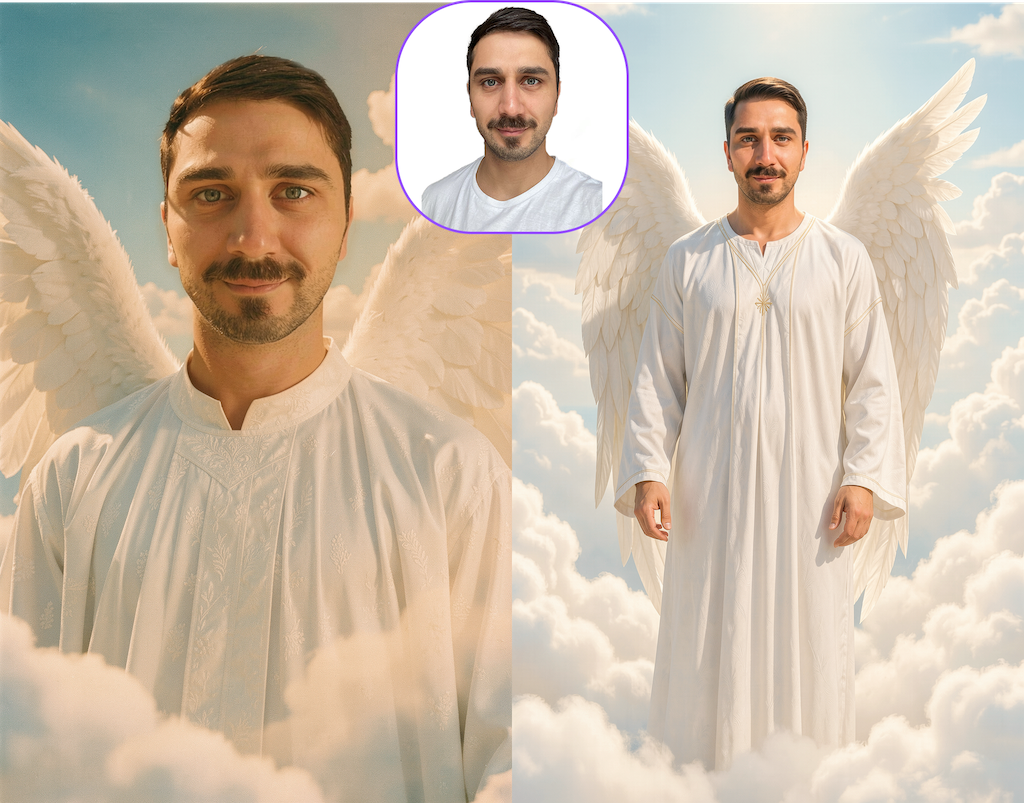
Faceswap: IMG2Filter
Image2Filter allows you to turn any image into a AI filter inside the Filter Creator. The base image defines the scene and composition, while the AI places the user into that environment.
Image2Filter is especially useful for business activations, because the scene is predefined and the results remain consistent and predictable. This makes it ideal for creating client drafts and approved campaign visuals before an event goes live.
You can use:
- images generated with our conceptualizer or any other AI-Tool
- campaign visuals provided by clients
- existing photos or artwork
In this guide, you’ll learn:
- What are the requirements for Image2Filter and what is the process?
- Comparison FaceSwap Model V6 vs V5
- Transformation Logics: Img2Filter (using Faceswap Models)
- How to choose good Base Images
- How to achieve the highest and consistent results
What are the requirements for Image2Filter and what is the process?
Image2Filter works using three elements:
- Base Image – defines the scene
- Mask – defines what the AI can change
- Prompt – guides the transformation
- Levraging one of our Faceswap Models (v6/v5)
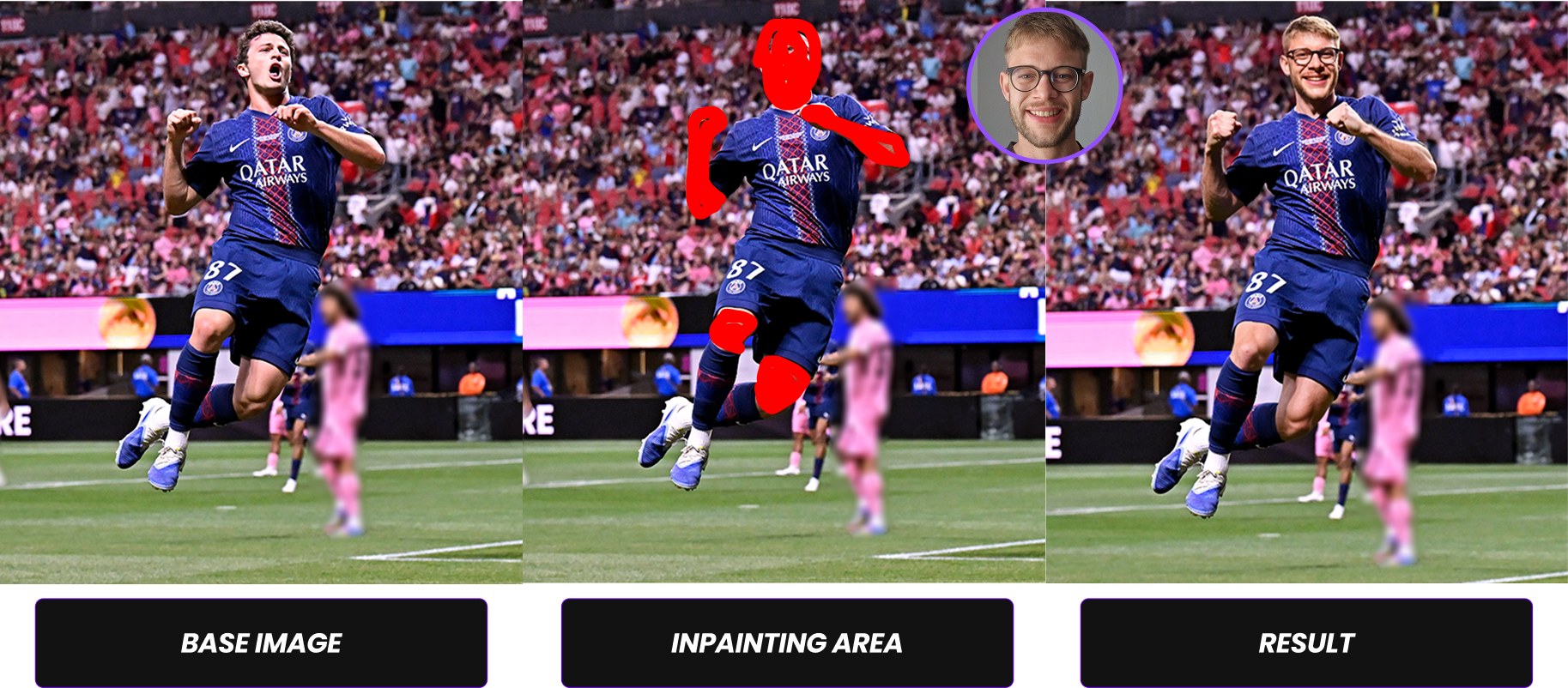
How to Use Image 2 Filter in the Filter Creator
To create an Image2Filter inside the Filter Creator:
- Go to the create filter tab in the dashboard
- Upload your base image which you would like to inpaint a person
- Mark the area that should change using the mask tool
- Write your positive prompt
- Choose the inpainting mode fitting to your image namely full body or skin only
- Generate and test your result
The base image defines the scene, the mask defines what will change, and the prompt defines how the final result should look.
Comparison FaceSwap Model V6 vs V5
Both our Models are available to use for Img2FIlter. We recommend using FaceSwap V6 for all filters, if posible. Both models use the same masking and workflow — but they perform best in different scenarios.
- Click here to access further information for Text2Image using V6: Prompting Guide Img2Filter Faceswap V6
- Click here to access further information for Text2Image using V5: Prompting Guide Img2Filter Faceswap V5
Tip:
- Clear, visible subject → Use V6
- Small, dynamic, or group scenes → Use V5
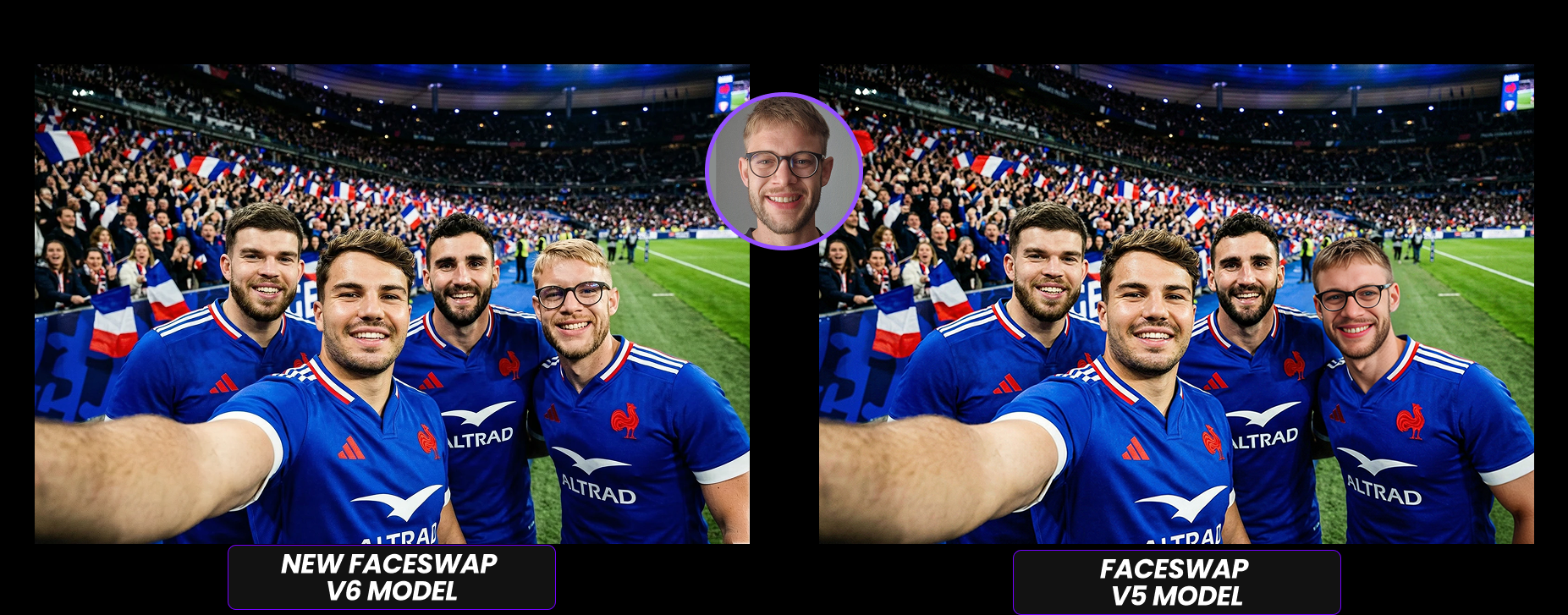
Deepdive Img2Filter using Faceswap V6 vs V5
Faceswap V6 (Flagship Model): V6 is our highest-quality model and delivers the most realistic and consistent results when the conditions are right.
Faceswap V5 (Reliable for Complex Scenes): V5 is slightly less detailed than V6 but more robust in challenging situations.
| Use V6 if... | Use V5 if... |
|---|---|
| Image Quality needs to be highest quality | a specific scene needs to be used and V6 fails |
| You need highest face recognizability | Less consistent but a specific scene is required |
| The subject is clearly visible | The subject is small in the image |
| The face has good pixel detail | Face visibility is limited |
| The pose is clean and easy to read | The pose is dynamic or complex |
| You want maximum realism and detail | You need stronger performance in difficult scenes |
| The composition focuses on one main person | The image contains groups, teams, or busy backgrounds |
| You are working on cinematic, fantasy, or stylized concepts | You are working with sports, action, or crowded scenes |
Transformation Logics: Img2FIlter (using Faceswap Models)
Masks define the inpainting area of change in the input image and the Transformation logics are pending on the used Model.
Two main types of mask annotations (check the table below to get a full overview):
Tips for masking:
- Masks and their shape are pending on the used model (V5 rough shapes; v6 precise tracing of the subject)
| Mode | Description | Recommended For | Note |
|---|---|---|---|
| Full Body Inpainting | AI modifies the entire masked body area, including clothing. Also gives the AI more flexibility to adapt body proportions for male and female users. | Fantasy scenes, costumes, creative transformations | ⚠️ Clothing details such as logos change, since the body is regenerated. |
| Skin-Only Inpainting | AI modifies only visible skin areas, mainly the face. Preserves logos and clothing details. | Sports jerseys, branded clothing, campaign visuals | — |
How to choose the right amount of base images
Image Modes define which base image is used depending on the participant's gender or age group. This allows the AI to better match body proportions, clothing, and composition for each user.
Tip: For the best results, generate dedicated base images using the Conceptualizer → Gender Swapper, then import them directly into Image2Filter.
| Mode | Description | Best Used When |
|---|---|---|
| Unisex Image | One base image for all users. | Gender-neutral scenes where body proportions and clothing do not matter (e.g. Neutral scenes such as costumes or characters) Be aware that body proportions may look less accurate for children or different body types. |
| Male / Female Images | Separate base images for male and female users. | Body shape or clothing differs, especially with Skin-Only Inpainting. |
| Male / Female / Boy / Girl Images | Separate base images for each category. | Events with children or mixed audiences — produces the most accurate and natural results. Esp. suggested, when clothing contains logos, branding, or important design elements |
How to choose good Base Images
The subject’s face must be fully visible. Avoid images where the face is covered or partially blocked by hands, masks, visors, or any other objects. For close-up of the face, we recommend using V6.
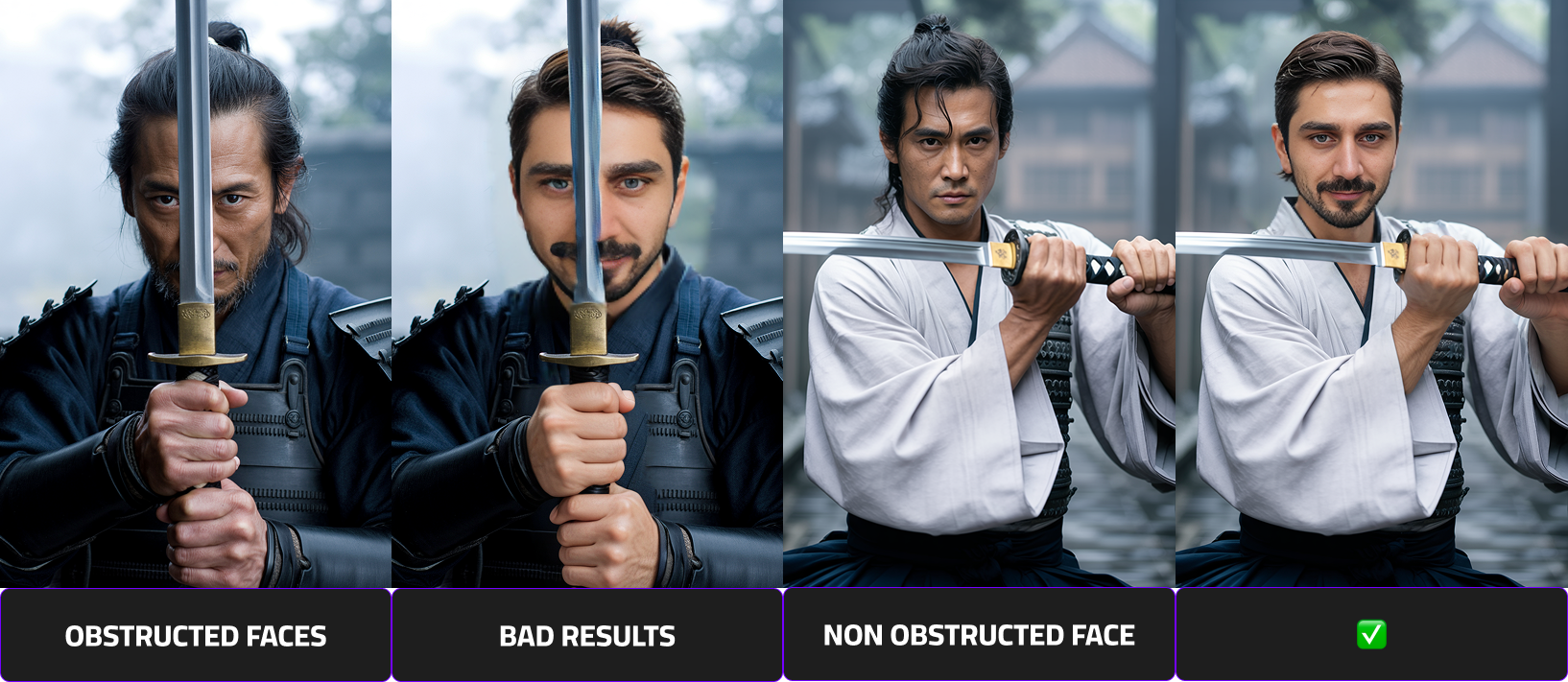
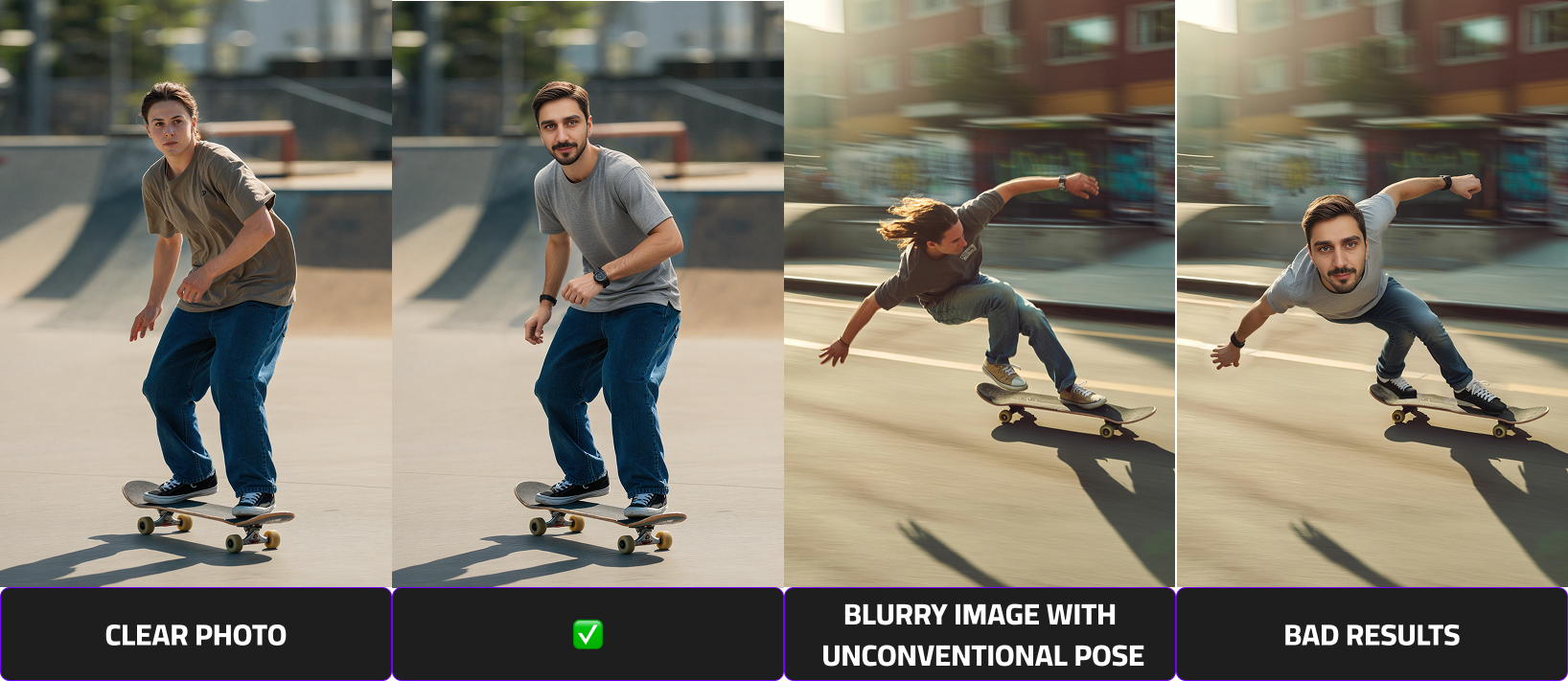
Provide Sharp Images With Simple, Readable Poses
Choose images that are in focus and easy to interpret. Blurry photos or complex poses can significantly reduce output quality.
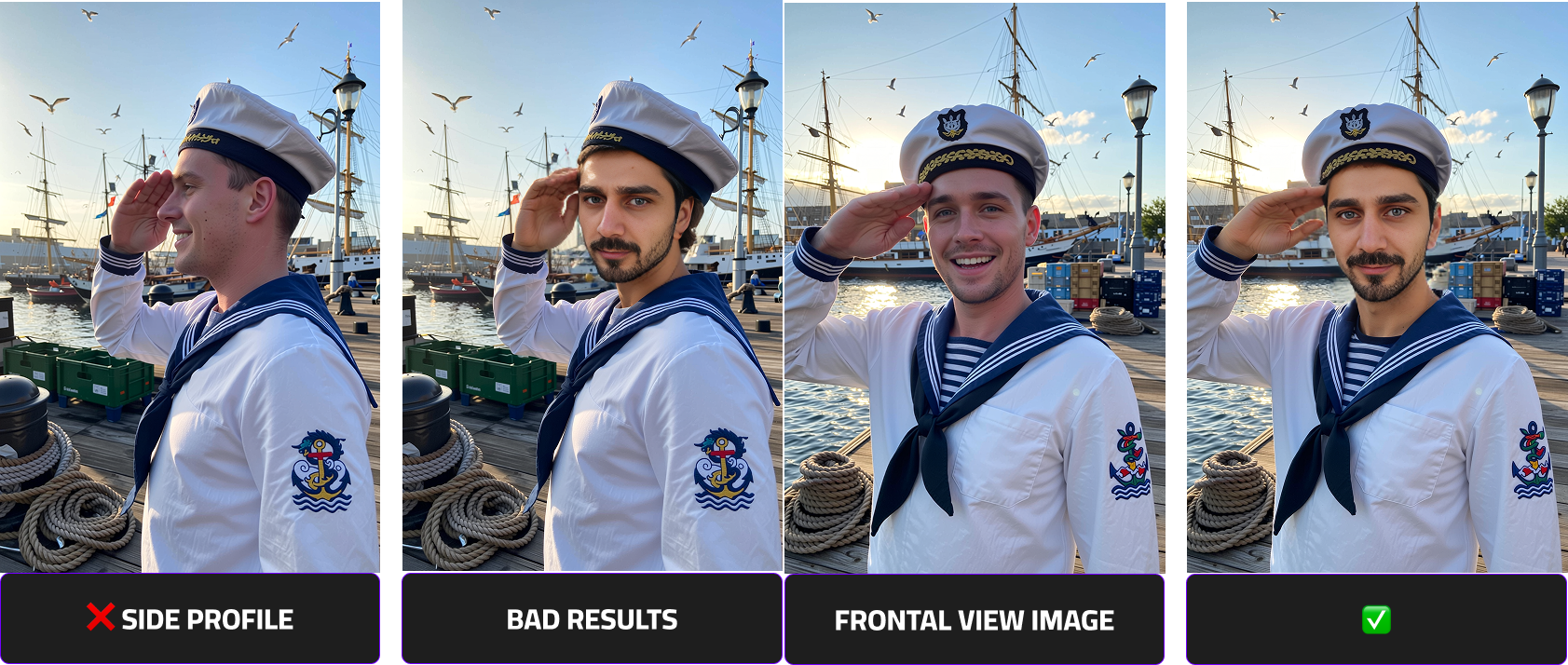
Prefer Front-Facing Photos
The face should be facing forward with minimal head rotation and minimal shadows. Side profiles or heavily angled shots are not recommended as they result in deformed representations of the users.
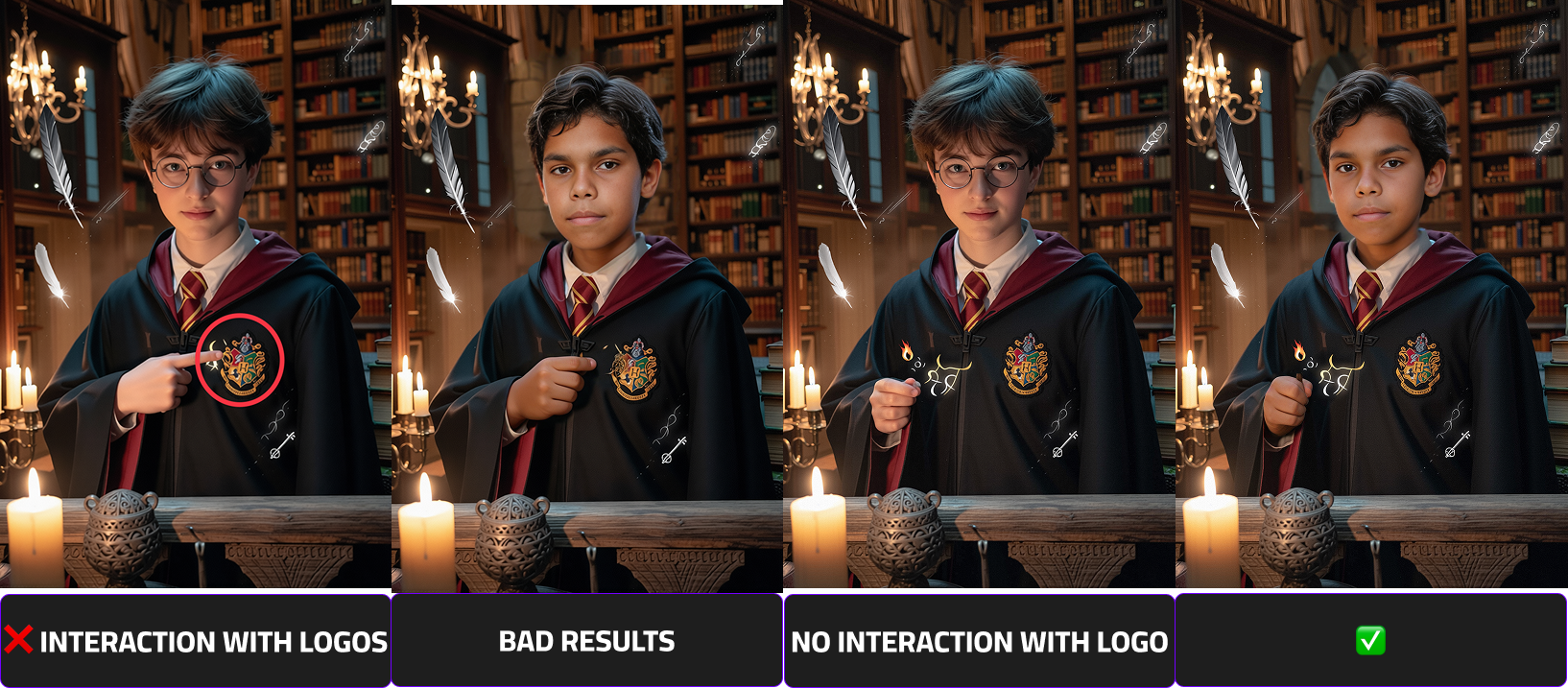
Avoid Interaction With Brand Logos
Images where the subject touches or overlaps with brand logos may introduce unwanted distortions during processing. Ensure there is no physical interaction with any branded elements.
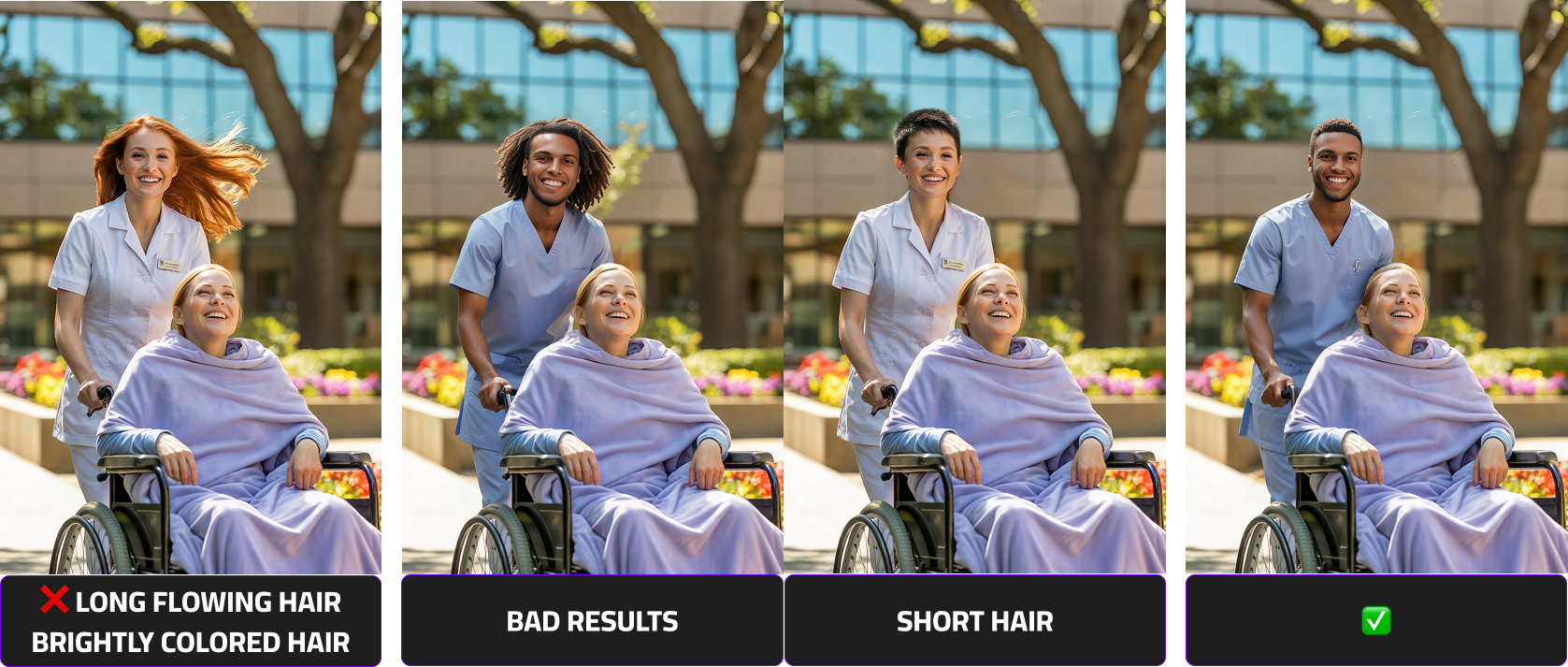
Use Subjects With Neutral, Non-Flowing Hair
For best compatibility across different face swaps, avoid subjects with brightly colored, dynamic, or flowing hair that may complicate the inpainting process.
Limit Close Contact With Other People
Images where faces, arms, or bodies are very close together — especially around the areas to be swapped — can lead to unintended facial distortions. Use photos with clear separation between individuals.
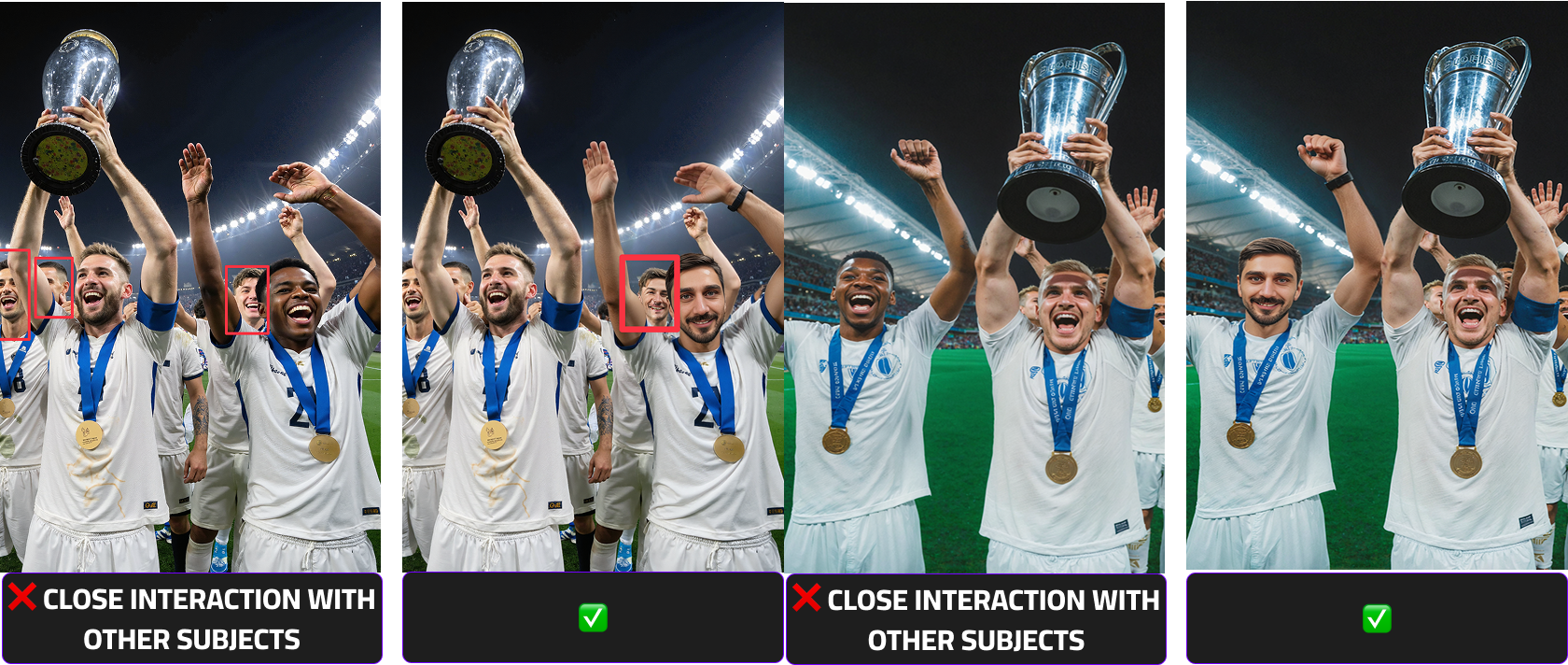
Note
When working with low-quality or unsuitable base images, it may be necessary to make small adjustments such as removing distracting or unwanted elements to achieve acceptable results.
In some cases, however, it may be significantly more efficient to recreate the entire image in a more appropriate and face-swap-friendly manner
How to achieve the highest and consistent results
Beside a clear prompt and the input photo, esp. the output scene has a big impact on the output quality.
The most important factor for high-quality deepfake results is how many pixels the face occupies in the image.
- Larger face area → More facial detail captured
- More detail → Better identity reconstruction
- Better reconstruction → Higher realism
Close-up portraits consistently produce the strongest results because the model can focus its precision on facial features instead of distributing resources across a large, complex scene.
| Scenario | Image Type | Face Pixel Density | Expected Quality | Recommendation |
|---|---|---|---|---|
| ✅ Best Case | Close-up / Portrait | High (large visible face area) | Highest quality results | Strongly recommended |
| ⚠️ Medium | Half body | Moderate | Good quality results | Acceptable |
| ❌ Worst Case | Full body (small head area) | Low (small visible face area) | Reduced quality / less detail | Avoid if possible |
A Scene complexity directly influences recognizability and rendering accuracy.There is always a balance between identity precision and cinematic storytelling.