Organisations
Organizations in Eventstation
Organizations let you collaborate with a team under a single workspace. Once you're in an organization, you can use and see your organization's shared filters
This guide explains what clients can do inside the app: create an organization, invite members, and accept/decline invitations.
What you get with Organizations
- Shared filters / team visibility: collaborate with teammates and access shared organization filters (based on your role).
- Team access control: invite members and assign roles so the right people can manage the organization.
- Shared credit usage: All credits used within an organization are deducted from the credit balance of the Owner who created the organization.
Roles and what they can do
Owner
The Owner has full access to manage the organization.
Owners can:
- Invite members
- View members and invitations in the management page
- Manage and edit all organization filters
- Use the filter creator
- Use organization features, including shared filters
Admin
Admins can manage the organization.
Admins can:
- Invite members
- View members and invitations in the management page
- Manage and edit all organization filters
- Use the filter creator
- Use organization features, including shared filters
Artist
Artists can use organization features and work with organization filters.
Artists can:
- Use the filter creator
- Manage and edit all filters of the organization
- Use organization features, including shared filters
Notes
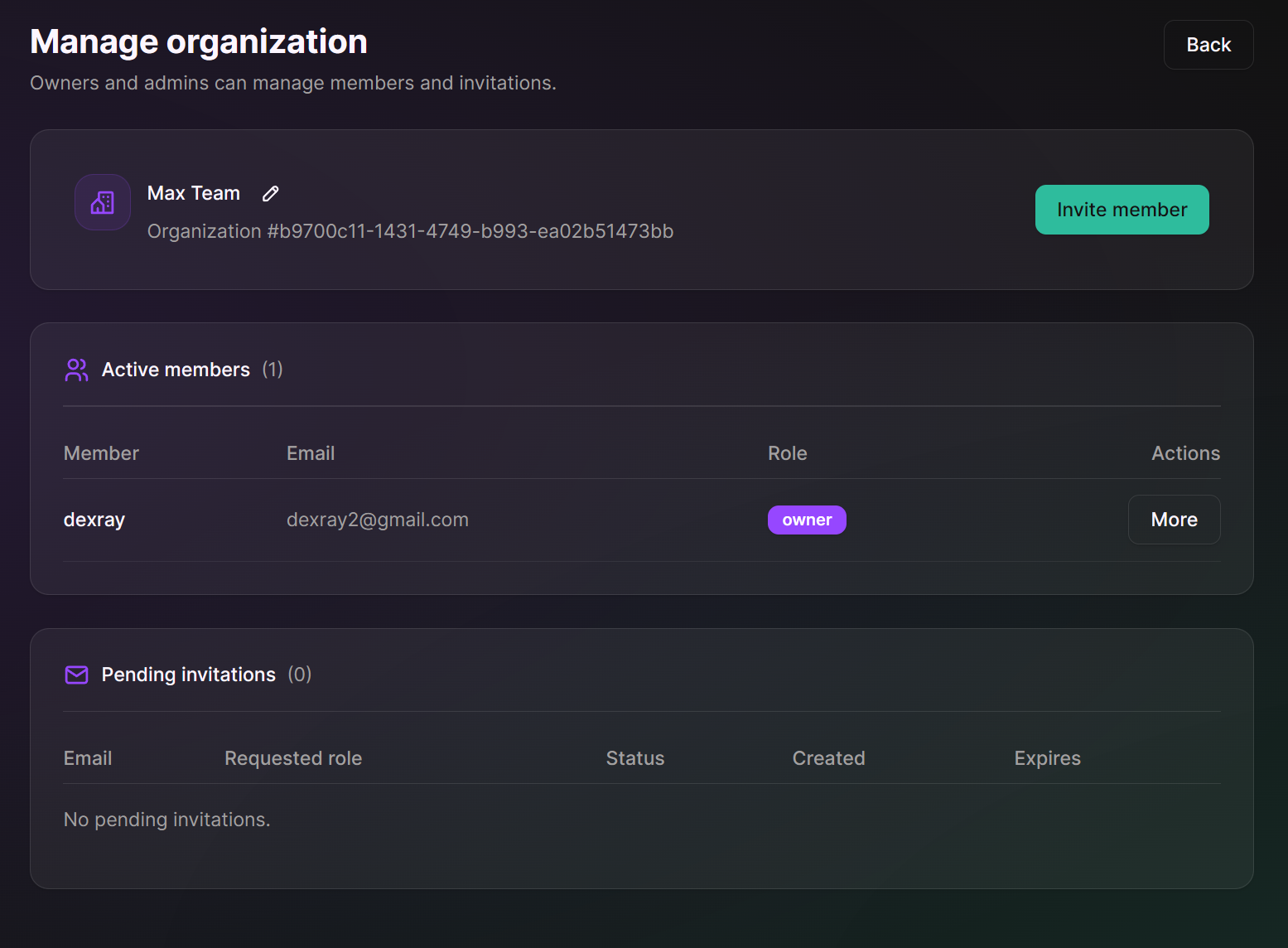
- Only Owners and Admins can access Manage organization.
- You cannot invite someone as an Owner. The Owner is assigned when an organization is created.
- All organization credit usage is deducted from the Owner’s credits.
How to create an organization
- Open the user menu (top right) in the Dashboard.
- Click Organizations.
- Click Create organization.
- Enter an organization name and confirm.
After creation, you'll see your organization shown as a clickable card on the Organizations page.
How to invite members (Owner/Admin)
- Go to Organizations.
- Click your organization card to open Manage organization.
- Click Invite member.
- Enter the member's email.
-
Select a role:
-
Artist (default)
- Admin
- Click Send invite.
If something goes wrong (for example the email is invalid), the app will show a clear error message in the invite dialog.
How to accept or decline an invitation
- Open the invitation link you received (it looks like
/organization/invitation/<token>). - Review the invitation details (email, requested role, status, and dates).
- Click Accept to join, or Decline to refuse.
- You'll be redirected back to Organizations.
Tips and best practices
- Use Admin sparingly; admins can manage the organization.
- Make sure you're logged in with the same email that received the invitation.
- If an invite is no longer valid, ask an Owner/Admin to send a new invitation.